

Telling identical DeckLink cards apart
A DeckLink card with several connectors lists each connector as a device of its own, and with two or more cards of the same model in one computer, Composer lists all of them as DeckLink Duo (1), DeckLink Duo (2) and so on. The number is the order the driver happens to find the devices in, not something fixed to the card: adding, removing or moving a card can renumber them, and an input that captured from (1) yesterday can capture from a different card today. Give every device a label of its own in Blackmagic Desktop Video Setup, and Composer shows — and remembers — that label instead.
Why it matters for a project. The Input device & channel setting of BlackMagic DeckLink Capture v3 and the Output channel setting of Blackmagic Decklink Target v4 list devices by name, and a project remembers the device by that name. When the saved name is not on the computer, Composer picks a device with the same number in brackets and logs a warning that it replaced it. Without labels, that replacement can be a different card, or even a different model. With unique labels, a project either finds the device it was saved with or comes up with no device selected — never with someone else's.
Setting a label
Close Composer. It reads the device names when it starts, so a label set while it runs appears only after a restart.
Open Blackmagic Desktop Video Setup. On Windows, it is under Start → Blackmagic Design → Desktop Video Setup. On Linux, it is under Applications → Sound and video, and is installed by the
desktopvideo-guipackage.On the home page, use the arrow buttons either side of the hardware image to step to the device you want to name, then click its image or the settings icon below its name. A card with several connectors shows each connector as a device of its own; label each one you use.
Open the About tab and type the name in Label, under Product Notes, then click Save.
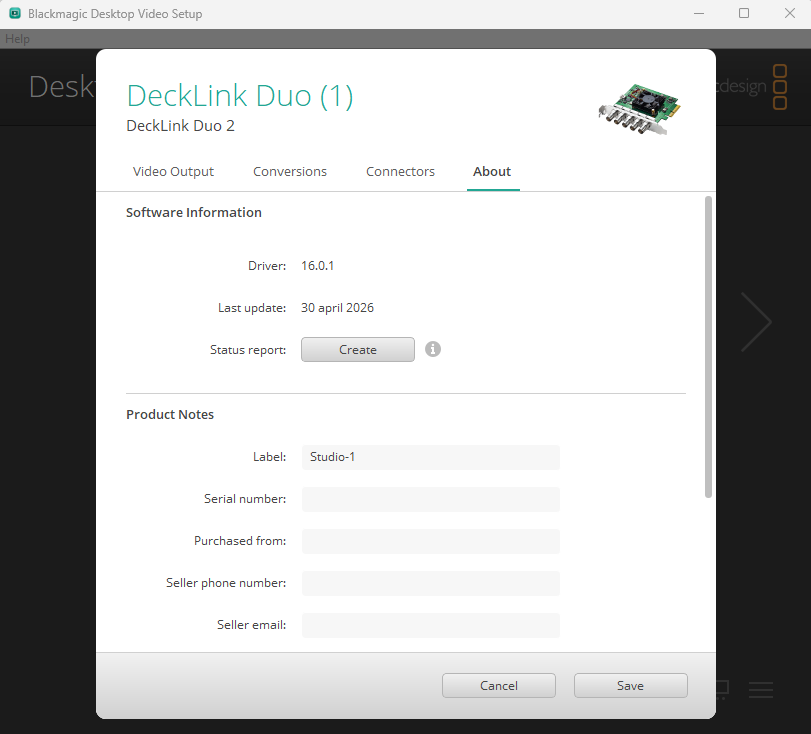
Repeat for every device, then start Composer. The device lists in the input and target settings now show the labels.
Choose labels that are:
- Unique on the computer. Two devices with the same label can't be told apart, and a project takes whichever is found first.
- Plain names, not ending in a number in brackets. Name a device after what it is wired to —
CAM 1,Studio-1,Program out— rather thanCamera (1). A name ending in a bracketed number can be matched by the replacement described above.
The read-only Device name shown while an input or target runs is the card's model, not its label. Use the device list to check which label is selected.
Projects saved before the cards were labelled
A project remembers the name a device had when the project was saved. Once the devices carry labels, the old names such as DeckLink Duo (1) no longer exist, so each DeckLink input and target in an older project comes up with no device selected. Pick the labelled device again in each one and save the project. The same applies if you rename a label later.
Labels belong to the computer, not the card
Desktop Video Setup saves a label on the computer, not on the card. A card moved to another computer shows its default name there, and a project moved to another computer finds its devices only if that computer's devices carry the same labels, spelled exactly the same. Label the devices on every computer that runs the project.
A device that has no Label field in Desktop Video Setup can't be labelled; Blackmagic offers labels only on devices that keep a stable identity across restarts.
Linux servers without a desktop
Blackmagic does not ship a command-line tool for labels; the BlackmagicFirmwareUpdater command only manages the card's internal software. To label the devices on a server without a desktop, install desktopvideo-gui and run Desktop Video Setup over SSH with X forwarding:
ssh -X user@composer-host BlackmagicDesktopVideoSetup
Alternatively, attach a monitor and set the labels before the server goes into service — they are kept across restarts.