

Speech To Text
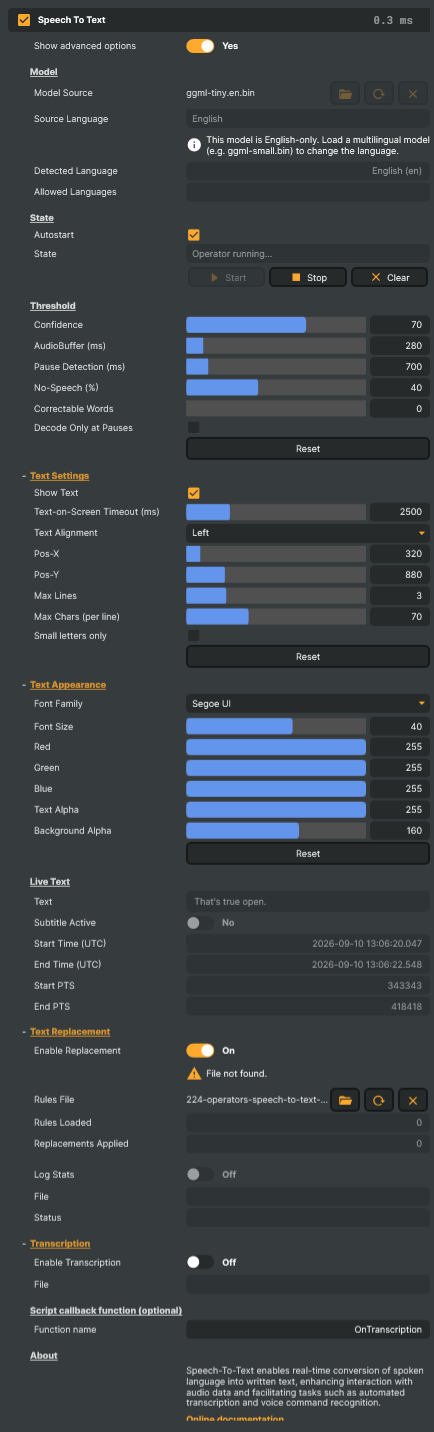
The Speech To Text Operator listens to the audio on the layer it is applied to and transcribes it as it is spoken. The recognised words can be drawn over the picture as live captions, written to a transcript file, and handed to Composer's Script Engine, where a function of your own decides what to do with them — trigger a graphic, drive an overlay, or act on a spoken command.
Every setting named in this article is described in the Settings section below.
Note
Everything rests on the audio that reaches the operator. Recognition cannot guess at words it cannot hear: background noise, a music bed, a reverberant room or two people talking over each other all cost accuracy, and no model makes up for them. Strong accents and slurred delivery are the other limit: the further a speaker sits from the way the language is most commonly spoken, the more errors to expect — and a bigger model does not fix that. Get the audio clean first, then choose a model; Tips for the best results, below, goes through both.
Requirements
- CUDA Toolkit 13 — recognition runs on the GPU. Follow the installation guide for your Windows or Linux platform.
- A Whisper model in the ggml format — a single
.binfile, selected under Model Source. Composer includes a small English-only model, the fastest of them, so the operator works out of the box. Other models are available on HuggingFace.
Getting started
- Add the operator to the layer whose audio you want transcribed. It listens to that layer.
- Set Model Source to a
.binmodel. Nothing is loaded until you do, and State says so. - Recognition begins on its own once the model has loaded, because Autostart is on; otherwise press Start. State then reads Running.
- Speak. The words appear as captions a second or two later and keep correcting themselves until the speaker pauses — that is how it works, and How the text settles below explains why.
- Place the captions with Pos-X and Pos-Y, and set how they look under Text Appearance.
That is the whole setup. Everything below is about making the result better.
Powered by Whisper
Speech To Text is built on Whisper, the open-source speech recognition model OpenAI released in 2022. It was trained on an unusually large and varied body of recorded speech, which is what lets it cope with background noise, ordinary microphones and unscripted speech far better than the hand-tuned recognisers that came before it.
Whisper comes in sizes, from tiny up to large, and a bigger model is broadly more accurate but slower and heavier on video memory. Not in a straight line, though: the largest model also comes in an optimised version that runs several times faster for, in OpenAI's words, "minimal degradation in accuracy". When a small model is not accurate enough, that is the first one to try.
Note
The model is the biggest single call this operator makes on the GPU. A larger one means more GPU work on every pass and a longer wait before the words appear — see Latency and GPU load below, which covers the two settings that tune both.
Two things to recognise in the file names. A model with .en in the name is English-only, and more accurate on English than the multilingual file of the same size — noticeably so for tiny.en and base.en, less so higher up. The largest models have no English-only variant. A name ending -q5_0, -q5_1 or -q8_0 is a compressed version of the same model: smaller and lighter on video memory, at some cost in accuracy, which is the lever to reach for when memory is tight.
Languages
With a multilingual model, Speech To Text recognises 99 languages. Set the one being spoken under Source Language, or leave it on Auto-detect and let the model identify it from the audio — Detected Language then shows what it settled on, and Allowed Languages narrows the field to the languages your show can actually contain. Because the included model is English-only, Source Language stays locked to English until a multilingual model is loaded.
Source Language is a promise, not a hint. With a language set, the model transcribes everything it hears as that language. Speech in any other comes back as fluent-looking nonsense in the chosen one — invented words that fit its sounds — rather than as silence or an error, because nothing in the operator second-guesses the setting. Where the spoken language can change, or you are not certain of it, use Auto-detect and hold it in check with Allowed Languages instead of naming one.
Note
Accuracy differs sharply from one language to the next — in OpenAI's own words, "Whisper's performance varies widely depending on the language". Each language was learned from however much recorded speech of it existed, and that varies enormously, so the widely spoken ones come out well ahead of the rest. Never assume a language works because the list offers it: test the ones your show actually uses before relying on captions in them. A language that struggles on a small model is the clearest case for a larger one.
Two more settings matter for a language outside the Latin alphabet:
- A font that has the characters. Characters the caption font lacks are not borrowed from another font — they simply do not appear. Choose one under Text Appearance → Font Family that covers the language.
- Text Alignment, for right-to-left languages such as Arabic and Hebrew. Set it to Right: the rows then end at Pos-X measured from the right edge and read towards the left, while a number or a left-to-right phrase inside a row still reads forwards. The language on its own never moves the captions.
How the text settles
Whisper does not recognise a word and move on. It re-reads the whole utterance on every pass, so a caption keeps changing under you as the sentence grows and more context arrives — which is what makes the text appear word by word, and what makes an early guess correct itself a moment later. Pause Detection is where that stops: once the speaker has been quiet for the set time, the words so far are locked, their audio is dropped, and nothing can revise them afterwards. The next words carry on along the same line.
Composer listens for speech itself rather than for loudness, so a noisy room does not read as talking and the quiet before and after an utterance never reaches the model. That matters more than it sounds: it removes most of the invented text the larger models produce in silence, and it lets the GPU idle between sentences instead of decoding around the clock.
Set Pause Detection short, a few hundred milliseconds, for a conversation: the gaps as two speakers hand over are often under half a second, and a longer setting never fires in them, so both turns run together into one endlessly growing caption. A single presenter can afford a longer setting and gains a little accuracy from it, because the model keeps refining until a real break arrives.
Latency and GPU load
Captions trail the speech by the Audio Buffer plus the model's own processing time — roughly one to two seconds with a large model at the default one-second buffer. Two settings move that balance:
- Audio Buffer is how much speech is collected before each pass. Since every pass re-transcribes the whole utterance, halving it roughly doubles the work the GPU does. Lower is snappier; higher is calmer, more accurate, and for the larger models simply necessary to keep up with live audio.
- Decode Only at Pauses runs the model once per utterance instead of continuously. There is no live text: the words wait until Pause Detection fires and then arrive together, already final. On a large model under continuous speech this measured about 40 percent less GPU power. The price is the growing text itself, so the mode suits presentations and recorded material better than a quick exchange.
💡 Tip
To put the captions back on the words instead of behind them, hold the programme back to meet them. Place a Video Delay operator before Speech To Text and an audio Delay beside it, both set to the caption latency: recognition keeps running on the live audio while picture and sound are held, so each caption lands on the words being spoken. Match the two values to the project frame rate — at 30 fps, 30 frames is 1000 ms.
Tips for the best results
Whisper is robust, but what reaches it still decides what comes out.
- Start with clear speech, not a repair for it. Nothing else in this list comes close: a directional or lavalier microphone near the speaker, a quiet room, no music bed under the voice, one person talking at a time. Every fix applied afterwards works on what the microphone already lost. Where the source genuinely cannot be improved — a venue you do not control, an incoming feed you cannot re-mic — a Crystal Speech operator ahead of this one will strip out some of the noise and is worth having, but it recovers ground rather than making up for a poor source.
- Aim for natural, unhurried speech. Very fast, slurred or over-articulated delivery produces more errors than an ordinary conversational pace. Short pauses between sentences pay twice over: the model segments better, and Pause Detection has something to fire on.
- Keep levels healthy. Audio that is too quiet hides the sounds the model listens for; audio that clips injects distortion that looks nothing like speech. Aim for a normal broadcast level, with peaks well below 0 dBFS.
- A bigger model is not a fix for bad audio. A noisy location, a live room, people talking over each other, a strong accent, slurred delivery — none of these improve because a larger file is loaded. They are solved at the microphone, or not at all, and the words that still come out wrong are a job for replacement rules. Where model size does earn its cost is clean speech that a smaller model keeps mishearing, and languages other than the most widely spoken. Judge each step on your own material: the gain varies with it, and every step costs video memory, GPU time and delay.
- Working only in English? Stay on an English-only model. The
.enfiles transcribe English more accurately than a multilingual model of the same size, and they cost less GPU to run. If the audio is only ever English, try the smaller English-only models before reaching for a multilingual one — keep those for audio in another language, or that switches between several. - Correct the words it keeps getting wrong. Names, in-house jargon and stubborn homophones rarely improve with a bigger model. Fix them with the replacement rules described under Automatic text replacement, below.
Related components
- Crystal Speech — an AI denoiser for audio you cannot clean at the source; place it before Speech To Text to strip out some of the noise. Second best to clear speech at the microphone, never a replacement for it.
- Text To Speech (ElevenLabs) — the inverse direction: turn scripted text into spoken audio in real time, useful for AI-driven announcements and presenter pipelines.
- Video Delay and Delay — hold the picture and the sound back by the caption latency so the captions land on the words; see the tip above.
Speech To Text - Settings

| Property | Description |
|---|---|
Show advanced options |
Whether to reveal advanced configuration in the editor. [default=false]. Toggle on to show options like the script callback fields. |
Model
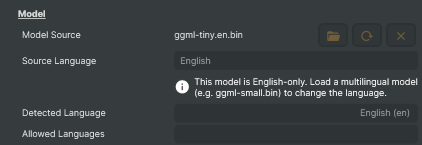
Model — pick the speech recognition model that gets loaded.
| Property | Description |
|---|---|
Model Source |
Path to the speech recognition model file (.bin) used for transcription. A larger model costs more video memory and more processing time per second of audio. It earns that on clean speech a smaller one keeps mishearing, and on languages other than the most widely spoken; it does not make up for a noisy location, cross-talk or a strong accent. Loading a new model reinitialises the operator. |
Source Language |
Language spoken in the audio. [default=English]. Auto-detect lets the model pick the language from the audio itself, at a slightly higher processing cost per pass. Only multilingual models can change language; English-only models (file name containing ".en") keep this locked to English. |
Detected Language |
Language the model used for the most recent text (read-only). With Auto-detect this is the detected language; otherwise it mirrors Source Language. Shown as name and code, e.g. "Swedish (sv)". |
Allowed Languages |
Languages auto-detect is allowed to transcribe, comma-separated. Codes or English names, in any case: "en, sv" and "English, Swedish" both work. Empty means no restriction, which is the default. Text the model heard as any other language is not shown, which keeps out the invented text a model produces when it wanders into a language nobody is speaking. Only applies with Source Language on Auto-detect, and is locked otherwise. |
State
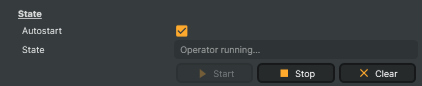
State — operator running state and start/stop controls.
| Property | Description |
|---|---|
Autostart |
Whether to start listening automatically once the model finishes loading. [default=true]. Saves a manual click when the project is loaded fresh; turn off if you want to start transcription only on demand. |
State |
Current state of the operator (read-only). Reports whether no model is selected, the model is loaded, the operator is running or stopped, or an error occurred. |
StartCommand |
Begin transcribing the layer's audio. Available once a valid model is loaded. |
StopCommand |
Stop transcribing audio. |
Clear |
Clear the on-screen captions and reset the audio context so previous speech doesn't bleed back in. |
Threshold
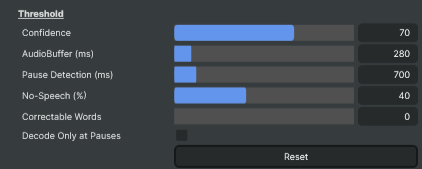
Threshold — accuracy/sensitivity controls for transcription.
| Property | Description |
|---|---|
Confidence |
Minimum confidence (in percent) a recognised word must score to appear on screen. [min=10, max=100, default=70]. Raise to suppress weak guesses — fewer words appear, but the ones that do are more likely correct. Lower to surface more text, at the cost of occasional misheard words. |
AudioBuffer (ms) |
How much audio is collected before each transcription pass, in milliseconds. [min=100, max=2000, default=1000]. Every pass re-transcribes the whole utterance so far, so halving this roughly doubles the GPU and CPU work. Lower values give snappier captions with less context for the model to reason from; higher values are more accurate and lighter, but the captions appear later. The larger models need a higher value to keep up with live audio. |
Pause Detection (ms) |
How long the speaker must be silent before the words so far are locked in, in milliseconds. [min=100, max=5000, default=250]. Shorter values settle the text sooner; longer values let the model keep improving a stretch of speech before it is fixed. Two speakers handing over need a short value, since the gap between their turns is often under half a second and a longer setting never fires in it. |
No-Speech (%) |
Whisper's own silence check, as a percentage: how sure the model must be that a whole stretch of audio held no speech before the text it produced for it is discarded. [min=0, max=100, default=60]. The verdict covers the whole utterance, not single words, so a stretch the model hears speech in is never touched, whatever noise rides along with the words. It catches the silence that still reaches the model: a false start on a breath or a music bed before anyone talks. Lower values discard more readily; 100 turns the check off, and low-confidence results are then retried at higher temperatures instead, which costs GPU time. Phantom words inside speech are Confidence's job, not this one's. |
Correctable Words |
How many words at the end of the live text the model may still correct. [min=0, max=10, default=0]. Words before them are locked as soon as they appear, so only a short tail ever moves on screen. 0 keeps the default rule, where a word is locked once two recognition passes agree on it. Applies to languages written with spaces between words. |
Decode Only at Pauses |
Whether speech is recognised only when Pause Detection fires, once per utterance, instead of live every Audio Buffer. [default=false]. With it on there is no live text: the words of an utterance appear together shortly after the speaker pauses, are finalised at once and never change. Far fewer recognition passes, which is what it is for. |
ResetThresholdValuesCommand |
Reset all threshold values to their defaults (confidence, audio buffer, pause detection, no-speech, correctable words, decode only at pauses). |
Text Settings
Text Settings — whether captions are shown, for how long, how they are aligned and where, how many lines they fill, where they wrap, and their case.
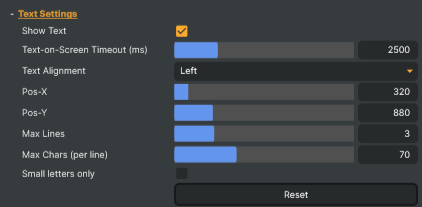
| Property | Description |
|---|---|
Show Text |
Whether to draw captions on the output image. [default=true]. Turn off if you only want to use the recognised text from a script (via RecentText and the callback) without on-screen captions. |
Text-on-Screen Timeout (ms) |
How long captions stay on screen after the speaker stops talking, in milliseconds. [min=100, max=10000, default=2500]. Longer values give the audience more reading time. Shorter values keep the screen uncluttered between sentences. |
Text Alignment |
Which edge the caption block is anchored to and the direction its rows are read in. [default=Left]. Left for most languages. Right for right-to-left languages such as Arabic and Hebrew: each row ends at Pos-X from the right edge and reads towards the left, while a number or a left-to-right phrase inside it still reads forwards. Takes effect from the next caption drawn. |
Pos-X |
Horizontal position of the caption block, in pixels from the edge Text Alignment anchors it to: the left edge with Left, the right edge with Right. The same value keeps the same margin either way. [min=0, max=4096, default=100]. |
Pos-Y |
Vertical position of the live caption line, in pixels from the top edge; the finished lines stack upward from it, so leave room for them above. [min=0, max=4096, default=250]. |
Max Lines |
Maximum number of caption lines on screen at once. [min=1, max=10, default=3]. When the limit is reached the oldest line scrolls away. Lower values keep the screen uncluttered; higher values give more reading time across longer monologues. |
Max Chars (per line) |
Maximum characters per caption line before wrapping. [min=1, max=200, default=60]. |
Small letters only |
Whether all captions are forced to lower-case. [default=false]. "I" and a few common contractions are still kept capitalised for readability. |
ResetTextDisplayCommand |
Reset the caption display to its defaults: text shown, the text-on-screen timeout, left alignment, the caption position, max lines, max chars per line and lower-case mode off. |
Text Appearance
Text Appearance — caption font family, size, colour and background.
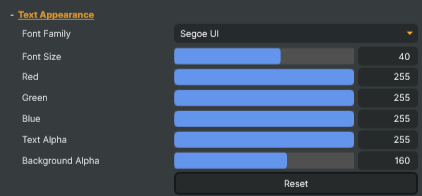
| Property | Description |
|---|---|
Font Family |
Which font draws the captions. [default=Arial or Segoe UI where installed, otherwise the first available font]. Pick a font that has the characters of the spoken language, for example a Japanese font for Japanese captions. A font missing on this machine is kept as the project's choice, with a note beside this row; the captions use the default until the project runs somewhere that has it. |
Font Size |
Caption font size, in pixels. [min=11, max=60, default=38]. |
Red |
Red component of the caption text colour. [min=0, max=255, default=255]. |
Green |
Green component of the caption text colour. [min=0, max=255, default=255]. |
Blue |
Blue component of the caption text colour. [min=0, max=255, default=255]. |
Text Alpha |
Caption text opacity. [min=0, max=255, default=255]. 0 is fully transparent, 255 is fully solid. |
Background Alpha |
Caption background opacity. [min=0, max=255, default=90]. 0 hides the background, 255 makes it fully solid. A subtle dark background helps readability over busy footage. |
ResetTextAppearanceCommand |
Reset all text appearance settings (font family, size, colour, alpha, background) to their defaults. |
Live Text
Live Text — the text the operator has just transcribed, plus subtitle timing.
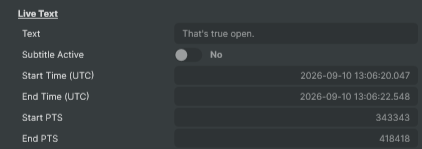
| Property | Description |
|---|---|
Text |
Most recently transcribed text (read-only). Updates every time the speech recognition engine produces a new result, and holds the caption as drawn, one line per row. Read this from a script to forward the live transcript to chat overlays, captions widgets, or any external system. |
Subtitle Active |
True while a caption is currently being shown (read-only). Resets when the text-on-screen timeout expires or the operator is cleared. Useful for scripts that need to react when speech starts or ends. |
Start Time (UTC) |
UTC timestamp of the caption text currently showing (read-only). Advances with every update while the speaker talks, since the text is revised as recognition improves — it is the time of the text on screen now, not of the first words of the block. Useful for tagging subtitles with absolute time when feeding them to external systems. |
End Time (UTC) |
UTC timestamp when the captions left the screen (read-only). Empty while captions are showing; set when they are removed by the text-on-screen timeout, Stop or Clear. |
Start PTS |
Video stream timestamp of the caption text currently showing (read-only). Advances with every update while the speaker talks, so it marks the frame the text on screen now was published on rather than the first words of the block. The input's raw timestamp in whatever units it provides, and zero if it provides none. |
End PTS |
Video stream timestamp of the frame the captions left the screen on (read-only). Zero while captions are showing, or if the input does not provide a presentation timestamp. |
Text Replacement
Text Replacement — find-and-replace rules to fix common misrecognitions or filter words.
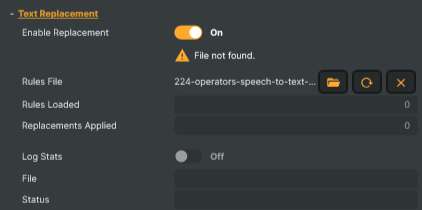
| Property | Description |
|---|---|
Enable Replacement |
Whether to apply find-and-replace rules to the recognised text. [default=false]. Useful for fixing recurring misheard words ("Hugh" → "you"), expanding domain abbreviations, or filtering profanity. Pair with a rules file via TextReplacementFileUrl. |
Rules File |
Path to a JSON file containing find-and-replace rules. Each rule is a key/value pair where the key is the pattern to find and the value is the replacement. Supports exact matches and wildcard patterns (* for any characters, ? for one character). Reload Media re-reads the file if it changes on disk. |
Rules Loaded |
Number of rules successfully loaded from the rules file (read-only). |
Replacements Applied |
Total number of replacements applied since the rules file was loaded (read-only). |
Log Stats |
Whether to log replacement statistics to a file in the Reports folder. [default=false]. Records which rules fired and how often, written to a file next to the executable and rewritten every ten seconds while the operator runs, so it can be read during a show. The project must be saved first, since the file is named after it. Useful for tuning the rules file by seeing what's actually being matched. |
File |
Path of the current replacement-stats file (read-only). |
Status |
Status of the replacement-stats logger (read-only). |
Transcription
Transcription — write the recognised text to a transcript file alongside the project.

| Property | Description |
|---|---|
Enable Transcription |
Whether to write all recognised speech to a transcript file in the Reports folder. [default=false]. Each speech segment is written as a timestamped line. Useful for archiving live shows and for accessibility post-production. The project must be saved first, since the transcript filename is based on the project name. |
File |
Path of the current transcript file (read-only). |
Script callback function (optional)
Script callback function — invoke a Script Engine function whenever transcription updates.

| Property | Description |
|---|---|
Function name |
(advanced) Name of a Script Engine function to call each time the transcription updates. Receives a JSON payload of text, startPts and endPts: the frame the text was published on, and the frame the captions left the screen, which is 0 while they are still showing. Both are the input's raw presentation timestamps, and 0 if it provides none. The update that reports the captions gone sends empty text, so draw whatever text arrives and clear when it is empty. Leave the field empty to disable. |
Inherits from: AbstractOperator, AbstractAudioMetering, NamedModel.
See also: Speech To Text in Script Engine Objects.
Automatic text replacement
Whisper is robust, but real-world audio still produces recurring misrecognitions: a name the model has never seen, a domain term it consistently mishears, a homophone that flips meaning. The Speech To Text operator includes a built-in text replacement stage that runs after transcription and before the recognised text is published — every recognised line is filtered through a list of find-and-replace rules loaded from a JSON file.
It also doubles as a profanity filter: replacing a word with an empty string (or with a string of asterisks) removes it from the output before subtitles are drawn or scripts are notified.
Corrections are made once, at the point the text is published, so the captions, the transcript file and the script callback all see the same corrected line. Nothing downstream needs its own copy of the rules.
Turning it on
| Property | What it does |
|---|---|
Enable Replacement (EnableTextReplacement in scripts) |
Master switch. When off, the file is ignored and recognised text is published verbatim. |
Rules File (TextReplacementFileUrl in scripts) |
Path (or asset URI) to the JSON rules file. Resolved through Composer's asset finder, so a bare filename will be located inside the project folder, the project's Media folder, or the global media directory. |
When the file path changes, the rules are reloaded immediately. To edit the file in place and pick up the changes without re-selecting it, use Reload Media on the project — the operator re-reads the URL and rebuilds its rule table. Rules Loaded confirms how many rules came back. This also works after a failed attempt — a file that was missing, empty or invalid when selected is read again once you have fixed it.
File format
The rules file is a flat JSON object — keys are patterns to find, values are the replacements:
{
  "find this": "replace with this",
  "another pattern": "another replacement"
}
Constraints worth knowing:
- Top-level must be a JSON object. Arrays, nested objects, and other shapes are rejected with an "Invalid JSON" error.
- Keys and values are both strings. A number or a boolean anywhere in the file stops the whole file loading with an "Invalid JSON" error. Write an empty string
""when you mean "remove this" — anullvalue is not a replacement. - Empty or whitespace-only keys are skipped silently. Invalid regex-escaping or other malformed patterns cause the individual rule to be skipped — the rest of the file still loads, and a status note reports how many rules were skipped.
- JSON forbids duplicate keys — the parser keeps only the last occurrence. If you need several variants pointing to the same target, give each variant a slightly different key.
- The file is parsed once when loaded; it is not watched for changes. Edit and Reload Media to refresh.
How rules are applied
For every recognition result — the utterance the model is working on, revised at every pass — the operator runs the loaded rules in this order:
- Sort the rules by length, longest first, not counting
*and?. So"no more beds please"is tried before"beds", and a rule that is longer only because of its*does not go before an exact one:"there"is tried before"the*re". When two rules are the same length, an exact rule goes first, and after that the rule higher in the file. - Match each rule against the current line, case-insensitively, on whole words. A rule for
"bet"will not match inside"better". - Replace the match. Any region already replaced by an earlier rule is protected — later rules cannot touch it. Once
"no more beds please"has become"no more bets please", the standalone"beds" → "bets"rule will not run on the same span. An empty replacement removes the match together with one neighbouring space, and the gap it leaves is protected too, so the words either side of it cannot join up into a new match. - Match the case of the recognised text — but only when the replacement is written entirely in lowercase:
"beds" → "bets"gives"Bets"at the start of a sentence and"bets"elsewhere, and a word the model wrote in capitals stays in capitals:"BEDS"becomes"BETS".- A replacement containing any capital letter is used exactly as written, so
"nasa" → "NASA"always givesNASA. - A replacement that does not start with a letter is left alone, which is why
"damn" → "****"comes out unchanged.
Turn on Log Stats to write per-rule statistics — hit counts, and for wildcard rules the text they last matched — to <project>-replacement-stats-<timestamp>.txt in the Reports folder next to the executable. The file is rewritten every ten seconds while the operator runs, so you can watch it fill up against a live source rather than waiting for the end of the show. Save the project first: the file is named after it, and a note in the panel says so if you have not.
Wildcards
Two wildcard characters are supported. They are context-sensitive — the meaning of * depends on whether it sits inside a word or stands alone as its own token:
| Pattern | Meaning | Example match |
|---|---|---|
* inside a word |
Any run of non-whitespace characters (zero or more), including punctuation, apostrophes, hyphens. | "b*ds" matches beds, bids, bands. "That*" matches That and That's. |
* as a standalone token (separated by spaces) |
One or more whole words, possibly with attached punctuation. It stops at the first place the rest of the pattern matches. | "no more * please" matches no more beds please, no more chips on the table please. |
? |
Exactly one non-whitespace character. | "b?t" matches bat, bet, bit, b't. |
\* and \? |
A literal asterisk or question mark. Write the backslash twice inside the JSON string. | "okay\\?" matches okay?. |
Notes on matching:
- Matching is case-insensitive.
- A pattern is matched against one recognition result at a time — the utterance the model is currently working on — so it can never span two utterances.
- Patterns match whole words, so a rule for
"bet"will not match insidebettingorbets. A trailing wildcard does not swallow punctuation either:"That*"againstThats!replacesThatsand leaves the!where it was. - A pattern that starts or ends with punctuation matches only where that punctuation is followed by a space or the end of the line (or, at the start, preceded by one).
"Mr."matchesMr. Smithbut notMr.Smith. - Whitespace inside a multi-word pattern is treated flexibly — one or more spaces in the input all count.
Punctuation in patterns
Whisper's output is post-processed by the operator before replacement runs. Commas, semicolons, colons, straight double quotes, slashes, ellipses and free-standing hyphens are stripped from the recognised text. Your patterns must therefore not contain those characters either. Periods, apostrophes, question marks, and exclamation marks are preserved and can appear in patterns. The first word of each sentence is also capitalised at this stage, before the rules run, so a correction is never re-cased afterwards.
If in doubt, write the pattern without trailing punctuation and use a wildcard:
{
  "good morning everyone": "Good morning, team!"
}
— the strict input phrase becomes the polished output, including the comma and exclamation mark.
A worked example
Suppose your show needs the model to:
- always render the host's surname
"Åström"correctly even when Whisper hears"oastrom","o-strom", or"awesome"after the first name - normalise three different misheard variants of the catchphrase
"no more bets please"into the canonical form - expand the abbreviation
"OB van"to"outside-broadcast van" - bleep two profanities
A rules file that does all of that:
{
  "no more beds please":              "no more bets please",
  "no more breads please":            "no more bets please",
  "no more * please":                 "no more bets please",

  "niclas o*":                        "Niclas Åström",
  "niclas awesome":                   "Niclas Åström",
  "niclas a-strom":                   "Niclas Åström",

  "OB van":                           "outside-broadcast van",

  "b?ds":                             "bets",

  "damn":                             "****",
  "shit":                             "****"
}
What happens, line by line, on this hypothetical transcript:
Welcome back. Niclas awesome is reporting from the OB van.
Place your beds — no more breads please.
Damn, that was close.
| Step | Effect |
|---|---|
| Sort | Sorted by length, not counting * and ?: "no more breads please" (21) comes first, then "no more beds please" (19), "no more * please" (15 — the * is not counted), "niclas awesome" (14), … "OB van" (6), "damn" (4), "b?ds" (3). |
| Line 1 | "niclas awesome" matches and becomes "Niclas Åström" exactly as written, because the replacement contains capitals. "OB van" then matches and expands — its replacement is all lowercase, so it takes its first letter's case from the matched text, which starts with a capital O: "Outside-broadcast van". |
| Line 2 | "no more breads please" matches first and rewrites the tail of the line to "no more bets please". "no more * please" would have matched that same span, but the longer rule has protected it, so it does nothing — this is what the sorting buys you. "b?ds" then fixes "Place your beds" earlier in the line. |
| Line 3 | The comma Whisper wrote is stripped before the rules run, then "damn" is replaced by "****" — left exactly as written, since the replacement does not begin with a letter. |
Final published transcript:
Welcome back. Niclas Åström is reporting from the Outside-broadcast van.
Place your bets — no more bets please.
**** that was close.
That capital O is worth dwelling on: matching ignores case, but a replacement written in lowercase takes its first letter from the matched text, and Whisper writes abbreviations in capitals. To decide the case yourself, put it in the replacement — any capital letter makes the operator use the replacement exactly as written. An all-lowercase replacement always follows the matched text, so where the model wrote a capital, a lowercase first letter cannot be forced.
Authoring tips
- Start specific, then generalise. Write the longest, most exact phrasing you've actually heard the model emit, then add wildcard fallbacks below it. Longer rules are tried first (not counting
*and?), so the strict rules win when they match and the wildcards catch anything else. When two rules are the same length, an exact rule wins, and after that the one higher in the file. - Test against real transcripts, not your imagination. Misrecognitions rarely look the way you'd guess. Run the source through Speech To Text once with replacement off, capture the raw output, and write rules against what's actually there.
- Mind word boundaries. A rule for
"bet"will not match inside"better", but"b*"definitely will. Use?when you mean exactly one character; reach for*only when you need it. - Empty replacements remove the match entirely. Useful for stripping filler words (
"um","uh") or as a profanity filter — the surrounding whitespace is cleaned up automatically. - Watch the stats file (turn on Log Stats) while tuning. A rule with zero hits over a long broadcast is dead weight; a wildcard rule that fires on the wrong content shows up as an unexpected Last match.
- Keep one rules file per project. The file path is project-relative through Composer's asset finder, so checking it in next to the
.prjmakes the project portable.
Troubleshooting
- "No text appears at all." Check State first — it says whether a model is loaded and whether the operator is running. Then make sure the layer actually carries audio, and that Show Text is on if you are expecting captions on screen rather than only text for a script.
- "The captions lag behind the speaker." The delay is the Audio Buffer plus the model's own processing time, one to two seconds with a large model. Lower the buffer, or hold the picture back to meet the captions with a Video Delay operator and an audio Delay set to that latency.
- "The text keeps rewriting itself while I watch." That is the model re-reading the whole utterance as it grows, and it is how live recognition works. Shorten Pause Detection to settle the words sooner, limit the moving tail with Correctable Words, or switch on Decode Only at Pauses so each phrase arrives once, already final.
- "Two speakers run together into one endless caption." Pause Detection is longer than the gaps as they hand over, which are often under half a second, so it never fires. A few hundred milliseconds does.
- "The captions are fluent nonsense — real words, no meaning." The speech is not in the language Source Language names. A named language is forced on the model, so it renders whatever it hears as words of that language rather than reporting a mismatch. Match the setting to what is actually spoken, or switch to Auto-detect and use Allowed Languages to hold it to the languages your show can contain.
- "The wrong language is recognised." The reverse case, on Auto-detect: set Source Language explicitly when the language is known, or narrow what Auto-detect may report with Allowed Languages.
- "The captions show boxes, or nothing, in a non-Latin language." The caption font has no characters for that language, and Composer does not borrow them from another font. Pick one that covers it under Text Appearance → Font Family.
- "Words appear when nobody is speaking." Lower No-Speech, which discards the text of a stretch the model judged to hold no speech. Larger models invent more of it in quiet moments than small ones do.
- "The same word is always wrong." Names, in-house jargon and homophones rarely improve with a bigger model. Correct them with a replacement rule, as described above.