

Speech To Text (Nemotron)
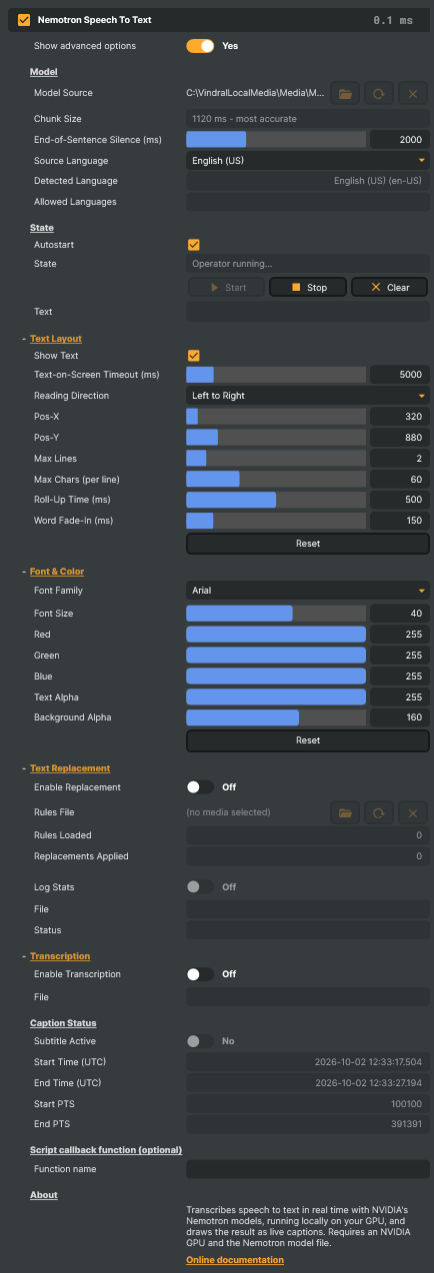
The Speech To Text (Nemotron) Operator transcribes the audio on its layer as it is spoken and burns the result into the picture as rolling live captions. It runs NVIDIA's Nemotron speech model locally on your GPU — no audio leaves the machine — and it reports the words it recognises to Composer's Script Engine, where a function of your own decides what to do with them: trigger a graphic, cut a camera, or act on a spoken cue. The same words can be written to a transcript file as the show runs.
What you can use it for
- Live accessibility captions. Subtitles burned into the programme feed for a stream, a conference or a service, without a captioner in the loop and without sending the audio to a captioning service.
- Events in a language your team does not speak. The multilingual model transcribes 32 language-locales as supplied, so the same rig captions a panel in one language one day and a different language the next by changing a single setting.
- A transcript for the archive. Each utterance written to a text file as it completes, stamped with the time it began and carrying the same corrections as the captions — useful for compliance, for search, and for finding the moment again afterwards.
- Voice commands. A spoken phrase reaches the Script Engine about a second after it is said at the default chunk size, and sooner if you shorten it — so a cue word can roll a graphic, switch a scene or start a recording.
- Remote monitoring. The captions currently on screen can be read by another system over Composer's HTTP API, so it can follow what is being said on a channel without anyone watching it.
Powered by Nemotron
Nemotron is NVIDIA's family of open speech models. This operator uses its two streaming recognisers, which are built to transcribe speech while it is still being spoken rather than to process a finished recording.
Both are supported, and you choose between them when you select the model file:
- The multilingual model offers 40 language-locales, of which 32 are transcribed by the model as supplied. The remaining eight are recognised but need further training before they produce usable text.
- The English-only model covers English alone, and is the better choice whenever English is all you need — see Choosing a model for why.
Where to download either is under Choosing a model below.
Everything stays on your machine
The model runs on your own GPU. No audio is uploaded, no transcript is sent anywhere, and the operator needs no internet connection once the model file is on disk.
That matters for three practical reasons beyond privacy. There is no per-minute charge, so the cost of a twelve-hour event is the same as a five-minute one. There is no rate limit or service outage to plan around. And there is no network round trip in the path, which removes one source of delay between the speaker and the caption.
How it works
Most speech recognition listens to a stretch of audio, thinks about it, and then revises what it thought it heard. That is why automatic captions so often shuffle and rewrite themselves on screen.
Nemotron works differently. It transcribes in short steps as the speaker talks, and each step is interpreted against a fixed window of the audio immediately before it — enough surrounding speech to tell similar-sounding words apart, without waiting for the sentence to finish. It does not retain the conversation; the window moves forward with the speaker and earlier audio drops out of it.
Once a word has appeared, it is never taken back.
That single property is what makes the captions behave the way broadcast subtitles should. The bottom line is the live one — it grows as the speaker talks, in whichever direction the text reads. When it fills up, it moves up the screen, a new line starts beneath it, and the oldest line scrolls away off the top. Because words that have appeared never change, the lines above the live one are settled: they never reflow, twitch or rewrite themselves while someone is reading them.
The model also punctuates and capitalises as it goes, so the captions arrive as sentences rather than as an unbroken run of words.
Requirements
- An NVIDIA GPU, and a model file you download yourself — see Choosing a model below.
- Windows — CUDA Toolkit 13, which Composer already requires. Nothing further to install.
- Linux — CUDA Toolkit 12.4.
Installation guides for Windows and Linux.
Choosing a model
NVIDIA publishes two, both free and ungated — no account, no access request. Download the GGUF file
(.gguf) from the model's Files and versions tab; the rest of the repository is the training checkpoint and
is not what the operator loads.
| Model | Covers | Licence |
|---|---|---|
| Nemotron 3.5 ASR streaming | 40 language-locales | OpenMDW-1.1 |
| Nemotron Speech streaming | English only | NVIDIA Open Model License |
Both permit commercial use, but under different licences, so read the terms on the page for the one you choose.
Tip
If the audio will only ever be English, take the English-only model. It is trained on English alone — around 530,000 hours of it — where the multilingual model spreads its training across 40 language-locales, and NVIDIA recommends it for English-only work on the multilingual model's own card.
The multilingual model handles English as well, so it is the safer pick wherever a second language is possible — a guest, a caller, an inserted clip. What you give up by choosing it is the English accuracy the recommendation above is about, not the language itself. Changing your mind later is not a setting: you download the other file and re-point Model Source, which reloads the model and interrupts recognition.
Point Model Source at the file and leave it where it is. Because the model stays where you put it, it is deliberately not copied by Composer's Export, Consolidate or Reallocate Media tools — a project opened on another machine expects to find the model already installed there.
The file NVIDIA publishes is a quantised build — lighter and quicker to run, at a small cost in accuracy — and for most work it is the right choice as it comes. Where that last bit of accuracy matters, the same model can be converted to a more precise one. That is worth reading once the rig is working: see Optional: improving accuracy with an fp16 model, after the settings below.
Getting started
- Add the operator to the layer whose audio you want transcribed. It listens to that layer, so put it on the layer carrying the speech rather than on the programme output.
- Set Model Source to the
.gguffile you downloaded. Nothing loads until you do, and State says so. Loading takes a few seconds and happens in the background. - On the multilingual model, set Source Language to the language actually being spoken. It starts on Auto detect when the model is selected. Naming the language explicitly is more accurate than leaving it on Auto detect, and naming it wrongly produces confident nonsense rather than a slightly worse transcript — Languages below explains why, and when Auto detect is the right choice. With the English-only model, Source Language is set to English (US) and locked, so skip the step.
- Recognition starts on its own once the model has loaded, because Autostart is on. Otherwise press Start, and State reads Operator running.
- Speak. Words appear as captions within about a second and are never rewritten once drawn. The Text readout shows what is being recognised even when the captions are hidden.
- Place the block with Pos-X and Pos-Y, and set how it looks under Font & Color.
That is the whole setup. Everything below the Settings tables is about making the result better — Getting the best results for the audio and the settings that matter most, Known issues and limitations for what the model cannot do however it is configured, and Troubleshooting when something does not behave as you expect.
Languages
Set Source Language to the language actually being spoken. This matters more here than with most recognisers: the language is given to the model as an instruction rather than guessed from the audio, so the wrong setting does not produce a slightly worse transcript — it produces confident nonsense.
Source Language applies to the multilingual model only. The English-only model has no language setting and was trained on US English, so selecting it sets Source Language to English (US) and locks it. Select the multilingual model to choose another language.
Selecting a model sets Source Language for you. A multilingual model starts on Auto detect. Switching between two multilingual model files — for example from the smaller q8_0 file to the fp16 one — keeps the language you chose. A saved project keeps its saved language.
How well each language is recognised. The 40 language-locales are not equally strong, because the model has seen far more speech in some than others. These are NVIDIA's own published error rates, and they are best-case figures on three counts: they are measured on clean, read speech, at the 1120 ms chunk size this operator uses by default, and with the language named rather than left to Auto detect. Live audio from a real room will do worse than the table says — treat these as a ranking between languages rather than as a figure to expect. Each band lists its languages most accurate first, and the table groups locales by language, so English, Spanish, French and Portuguese each cover two entries in Source Language:
| Band | Languages | Benchmark error rate |
|---|---|---|
| Strongest | Spanish, Italian, Portuguese, Hindi, Korean, English, German, French, Russian, Turkish, Vietnamese, Dutch, Japanese, Arabic, Ukrainian | 4–13% |
| Usable | Polish, Norwegian Bokmål, Finnish, Mandarin Chinese, Czech, Bulgarian, Slovak, Swedish, Croatian, Romanian, Estonian, Danish, Hungarian | 15–29% |
| Requires fine-tuning | Greek, Lithuanian, Latvian, Maltese, Slovenian, Hebrew, Thai, Norwegian Nynorsk | Not usable as shipped |
Accuracy can be improved by fine-tuning. The model can be trained further on your own material — a
particular language, accent, vocabulary or recording setup — which is how the eight adaptation-ready languages
are made usable, and how a language in the lower band can be pushed past its published figure. That is
NVIDIA's process rather than Composer's; their
model card is the reference for what it
involves. The operator loads a fine-tuned .gguf exactly as it loads NVIDIA's own.
Auto detect, and why naming the language is better
Auto detect does not listen to the audio and then transcribe it. The language is an instruction given to the model before it decodes anything, and under Auto detect the model picks that instruction itself — once per sentence, from the opening moment of speech in it. Everything for the rest of that sentence is then transcribed as the language it picked.
Three consequences follow, and they are worth weighing before leaving it on Auto:
- A sentence it judges wrong is wrong to the end of the sentence. There is no correction part-way; the next sentence gets a fresh decision.
- The decision is made on the least evidence available — the first fraction of a second of speech, just after a pause, which is also where recognition is weakest.
- Short, context-free phrases are the weak spot, because they give the model least to go on. A spoken number, a name or a one-word answer arriving just after a pause is where a misjudged guess is both likeliest and most visible: the same phrase can come out as a fragment under Auto detect and come out properly the moment the language is named, on the same audio. How much that costs depends on where the language sits in the table above — the strongest band has margin to absorb a poor guess, the lower band has little.
Tip
If you know which language will be spoken, set Source Language to it explicitly. Naming the language gives better accuracy than leaving it on Auto detect. Keep Auto detect for material where the language genuinely changes and you cannot know in advance — and expect the first sentence after each switch to be the weakest one.
Detected Language reports what the model chose. It follows the captions rather than leading them: the model declares the language when it closes a sentence, so a speaker who switches mid-flow is transcribed in the new language before this readout names it.
Holding Auto detect to the languages your show can contain
On a multilingual event, Auto detect will occasionally tag a passage as a language nobody in the room is
speaking, and caption it as that language. Allowed Languages limits what it may show: list the languages
your show can actually contain, as codes or English names in any case — sv, en and Swedish, English both
work — and anything tagged as something else is held back instead of being drawn. Leave it empty, the default,
to allow everything.
Two things are worth knowing before relying on it:
- It applies to Auto detect only, and is locked otherwise. With a language named explicitly, the model echoes your choice back as the tag whatever it actually heard, so there is nothing left to filter on.
- It suppresses a sustained passage, not the moment one starts. The language tag arrives after an utterance, so the filter judges what follows by what came before: the first utterance after a switch is shown whatever language it was in.
A script callback sees these as updates with suppressed set — see
Driving automation from speech below.
What renders correctly on screen
Whichever language you choose, the recognised text reaches the Text readout and the Script Engine with its characters intact. What varies is how well those characters can be drawn into the picture, which depends on the writing system and the font.
| Languages | On-screen result |
|---|---|
| English, Spanish, Portuguese, French, German, Italian, Dutch, Polish, Czech, Swedish, Norwegian, Danish, Finnish, Russian, Ukrainian and the other Latin, Cyrillic and Greek script languages | Correct with the built-in font |
| Arabic, Hebrew | Correct, joined and right-to-left — set Reading Direction to Right to Left and select a font containing the script |
| Japanese, Chinese, Korean, Thai, Hindi | Correct — but only once you select a font that contains those characters, using Font Family. With the built-in font they draw as empty boxes |
A line that mixes writing directions is laid out correctly: a price, a year or a Latin name inside an Arabic sentence reads forwards while the row around it reads backwards, and a number keeps its sign, currency and separators together wherever it sits.
One level of mixing is handled, which is as far as recogniser output goes in practice. Unicode direction-control characters are not interpreted, and a right-to-left phrase inside a Left to Right row is not re-ordered around the text either side of it.
Speech To Text (Nemotron) - Settings

| Property | Description |
|---|---|
Show advanced options |
Whether to reveal advanced configuration in the editor. [default=false]. Toggle on to show the operator's advanced and diagnostic properties. |
Model
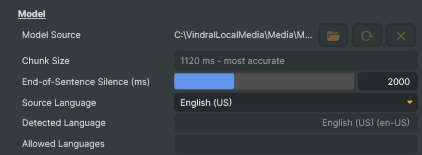
Model — the speech model to load, and the language it should listen for.
| Property | Description |
|---|---|
Model Source |
Path to the Nemotron .gguf model file. The whole model is that one file. Selecting it loads it onto the GPU in the background and sets Source Language to suit the model. Locked while the operator is running: stop it to choose another model. |
Chunk Size |
(advanced) How much speech the recogniser hears before it transcribes any of it, which is also how far the captions trail the speaker. [default=1120 ms] Longer is more accurate, shorter is quicker. Changing it reloads the model, so it is locked while the operator is running: stop it, change the size, then start it again. |
End-of-Sentence Silence (ms) |
(advanced) How long the speaker must pause before the recogniser ends the sentence, in milliseconds. [min=500, max=5000, default=2000] |
Source Language |
Language being spoken. Set this explicitly whenever you know which language it will be: naming the language is more accurate than Auto detect, and choosing the wrong one produces nonsense rather than a slightly worse result. With an English-only model it is locked to English (US), the only language that model understands. Changing it restarts recognition without reloading the model. [default=Auto detect with a multilingual model, English (US) with an English-only model] |
Detected Language |
Language the model used for the most recent text (read-only). With Source Language set to Auto-detect this is what the model decided it was hearing, which is worth watching: the wrong guess produces fluent nonsense rather than a degraded result. With a language chosen it still reports what the model heard rather than what was chosen, so a passage spoken in another language is named as that one. Shown as name and code, e.g. "Swedish (sv)". Empty until the first text arrives. |
Allowed Languages |
(advanced) Languages Auto detect is allowed to show, comma-separated. Codes or English names, in any case: "sv, en" and "Swedish, English" both work. Empty means no restriction, which is the default. Only applies with Source Language on Auto detect, and is locked otherwise. |
State
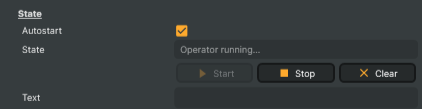
State — load the model, then start and stop transcribing.
| Property | Description |
|---|---|
Autostart |
Start transcribing as soon as the model has loaded. [default=true] |
State |
Current state of the operator. |
Start |
Starts transcribing. |
Stop |
Stops transcribing. The model stays loaded. |
Clear |
Clears the captions on screen and restarts recognition. |
Text |
The captions currently on screen (read-only), one line per row, exactly as drawn. Read this from a script to forward the live transcript to chat overlays, caption widgets, or any external system. |
Text Layout
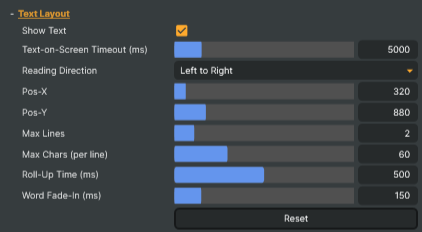
Text Layout — where the caption block sits, how it wraps, how many lines stay on screen and how long they linger.
| Property | Description |
|---|---|
Show Text |
Draw the captions over the video. [default=true] |
Text-on-Screen Timeout (ms) |
How long the captions stay on screen after the speaker stops, in milliseconds. [min=500, max=30000, default=5000] |
Reading Direction |
Which edge the caption block is anchored to and the direction its rows are read in. [default=Left to Right]. Left to Right for most languages. Right to Left for right-to-left languages such as Arabic and Hebrew: each row ends at Pos-X from the right edge and reads towards the left, while a number or a left-to-right phrase inside it still reads forwards. Takes effect from the next caption drawn. |
Pos-X |
Horizontal position of the caption block, in pixels from the edge Reading Direction anchors it to: the left edge with Left to Right, the right edge with Right to Left. The same value keeps the same margin either way. [min=0, max=5000, default=10 % of the image width] |
Pos-Y |
Baseline of the bottom line, in pixels. Finished lines stack upwards from here, so the caption block stays put as lines are added. [min=0, max=5000, default=90 % of the image height] |
Max Lines |
Caption lines kept on screen, including the one being written. [min=1, max=10, default=2] |
Max Chars (per line) |
Maximum characters per caption line before wrapping. [min=1, max=200, default=60] |
Roll-Up Time (ms) |
How long the caption block takes to scroll up when a line fills, in milliseconds. Zero moves it in one frame. [min=0, max=1000, default=500] |
Word Fade-In (ms) |
How long a newly recognised word takes to fade in, in milliseconds. Zero draws it at once. [min=0, max=1000, default=150] |
Reset |
Restores Show Text, Reading Direction, Pos-X and Pos-Y to their defaults, leaving the wrapping and timing settings as they are. For scripts: the panel's Reset restores the whole Text Layout section. |
Reset |
Restores every Text Layout setting to its default, the position included. |
Font & Color
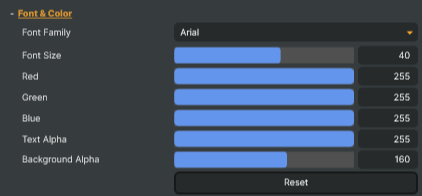
Font & Color — the font, color and backing box the captions are drawn with.
| Property | Description |
|---|---|
Font Family |
Which font draws the captions. [default=Arial or Segoe UI where installed, otherwise the first available font]. Choosing a font that has the glyphs is what makes Japanese, Chinese, Korean and Thai captions render instead of drawing as empty boxes. A font missing on this machine is kept as the project's choice, with a note beside this row; the captions use the default until the project runs somewhere that has it. |
Font Size |
Caption text size. [min=11, max=60, default=38] |
Red |
Red component of the caption text color. [min=0, max=255, default=255] |
Green |
Green component of the caption text color. [min=0, max=255, default=255] |
Blue |
Blue component of the caption text color. [min=0, max=255, default=255] |
Text Alpha |
Opacity of the caption text. [min=0, max=255, default=255] |
Background Alpha |
Opacity of the box behind each caption line. [min=0, max=255, default=160] |
Reset |
Restores the default text appearance. |
Text Replacement
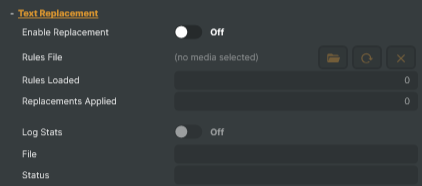
Text Replacement — find-and-replace rules to fix common misrecognitions or filter words.
| Property | Description |
|---|---|
Enable Replacement |
Whether to apply find-and-replace rules to the recognised text. [default=false]. Useful for fixing recurring misheard words, expanding domain abbreviations, or filtering profanity. Select the rules to apply under Rules File, below. A rule is applied the moment a word is complete, to the line still being written; lines that have moved up are settled. |
Rules File |
Path to a JSON file containing find-and-replace rules. Each rule is a key/value pair where the key is the pattern to find and the value is the replacement. Supports exact matches and wildcard patterns (* for any characters, ? for one character). Reload Media re-reads the file if it changes on disk. |
Rules Loaded |
Number of rules successfully loaded from the rules file (read-only). |
Replacements Applied |
Total number of replacements applied since the rules file was loaded (read-only). |
Log Stats |
Whether to log replacement statistics to a file in the Reports folder. [default=false]. Records which rules fired and how often, written to a file next to the executable and rewritten every ten seconds while the operator runs, so it can be read during a show. The project must be saved first, since the file is named after it. Useful for tuning the rules file by seeing what is actually being matched. |
File |
Path of the current replacement-stats file (read-only). |
Status |
Whether statistics are being collected, when they were last saved, and any error that stopped them (read-only). |
Transcription
Transcription — write the recognised text to a transcript file alongside the project.

| Property | Description |
|---|---|
Enable Transcription |
Whether to write all recognised speech to a transcript file in the Reports folder. [default=false]. Each utterance is written as one timestamped block, with the same corrections the captions get. Useful for archiving live shows, for review, and for finding the words to add to a rules file. The project must be saved first, since the transcript filename is based on the project name. |
File |
Path of the current transcript file (read-only). |
Caption Status
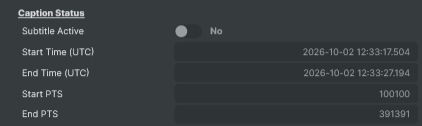
Caption Status — when the utterance on screen started and ended, in wall clock and in stream time. For diagnosing sync and for mirroring captions onto another system; shown only while Show advanced options is on.
| Property | Description |
|---|---|
Subtitle Active |
(advanced) True while an utterance is on screen or still being written (read-only). Useful for scripts that need to react when speech starts or ends. |
Start Time (UTC) |
(advanced) UTC timestamp of the moment the block on screen began (read-only). Held for the whole block, so the words that extend it do not move it. Useful for tagging subtitles with absolute time when feeding them to external systems. |
End Time (UTC) |
(advanced) UTC timestamp of the moment the captions were removed (read-only). Empty while a block is on screen. |
Start PTS |
(advanced) Video stream timestamp of the frame the block on screen began on (read-only). The input's own timestamp, in whatever units it provides, and zero when it provides none. Near the frame the text appears on, but not frame-accurate. |
End PTS |
(advanced) Video stream timestamp recorded when the utterance ended (read-only). The latest frame the operator had seen at that moment, on the same not-frame-accurate terms as Start PTS. Zero while one is in progress, or if the input does not provide a presentation timestamp. |
Script callback function (optional)
Script callback function — call a Script Engine function each time new words are recognised.

| Property | Description |
|---|---|
Function name |
(advanced) Name of a Script Engine function to call when the captions change, when text is rejected by Allowed Languages, and when the captions are removed. It receives one JSON string carrying text, lines, suppressed, startPts and endPts. Empty text means the captions were removed. |
Inherits from: AbstractOperator, AbstractAudioMetering, NamedModel.
See also: Speech To Text (Nemotron) in Script Engine Objects.
The sections below cover getting the most out of the recogniser, tuning it, and the features built around it — text replacement, transcripts and script automation — then what it cannot do however it is configured, and what to check when it misbehaves.
Getting the best results
- Give it clean, close audio. A directional or lavalier microphone near the speaker beats a room mic by a wide margin. Background music beds, crowd noise and reverberant rooms all cost accuracy, and no setting in this operator recovers what the input has already lost. Where the source genuinely cannot be improved — a venue you do not control, an incoming feed you cannot re-mic — a Crystal Speech operator ahead of this one will strip out some of the noise and is worth having, but it recovers ground rather than making up for a poor source.
- Keep levels healthy. Audio that is too quiet hides the sounds the model listens for; audio that clips injects distortion that looks nothing like speech. Aim for normal broadcast levels, peaking well below 0 dBFS.
- One voice per operator. The model transcribes the dominant speaker, so cross-talk is partly dropped or merged. Where you have isolated microphone feeds, run a separate operator on each.
- Set the caption width, not just the position. Max Chars (per line) decides where lines wrap, and Max Lines how many stay on screen. Two lines is the broadcast convention and keeps the block from covering the picture.
- Correct the words it keeps getting wrong. Names, in-house terms and stubborn homophones rarely improve with settings. Fix them with the rules described under Automatic text replacement, below.
Optional: improving accuracy with an fp16 model
The file NVIDIA publishes works as it comes, and for most work it is the right choice. This section is for the work where it is not.
That file is q8_0 — quantised. Quantising a model stores the numbers inside it at lower precision, so it occupies less memory and moves less data while it runs. That is what makes a quantised model lighter and quicker, and the smaller download is a side effect rather than the point. The price is accuracy: the harder a model is quantised, the more of it is given up. Converters offer a range of strengths, and q8_0 sits at the mild end — which is why NVIDIA ships it, and why it is the right choice for most work.
Converting the same model to fp16 keeps the precision that quantising would have discarded. Tried against the published q8_0 file it came out slightly more accurate, and because what it recovers is a property of the quantisation rather than of any one language, the same small gain should show elsewhere — though how much it helps has not been measured language by language. Expect a modest improvement rather than a different class of result. The file is about 1.3 GB against 742 MB, and it occupies memory in proportion.
It is worth the trouble when your language sits in the lower accuracy bands under Languages above, when the transcript will be read rather than skimmed, or when proper nouns matter and replacement rules are not keeping up.
You convert it yourself with NVIDIA's own converter, which runs on any machine and needs no GPU. Their model conversion documentation is the reference for it. As an example, converting the multilingual model to fp16:
Download the source archive for the current release of NeMo-Speech.cpp and unpack it. The converter,
convert_model.py, is in the root of that archive.Install its Python dependencies — in a virtual environment, to keep them out of your system Python:
pip install -r requirements.txtRun the conversion, naming the model you want. It is fetched from Hugging Face automatically, so there is nothing to download first:
python convert_model.py nvidia/nemotron-3.5-asr-streaming-0.6b \
    --outtype f16 \
    --outfile nemotron-3.5-asr-streaming-0.6b.fp16.gguf
Point Model Source at the file it produces, exactly as you would at NVIDIA's own.
Allow for roughly 2 GB of Python dependencies and a 2.4 GB model download the first time.
How the captions are laid out
Pos-Y sets the baseline of the bottom line — the live one. Finished lines stack upwards from there, so the caption block stays anchored where you put it instead of growing down into the shot as more lines arrive.
Reading Direction picks the edge the block is anchored to and the direction its rows read in: Left to Right for most languages, Right to Left for Arabic and Hebrew. Pos-X is the margin from that edge — measured from the left or from the right accordingly — so the same value keeps the same distance from the frame either way.
Max Chars (per line) wraps on a count of characters rather than on measured width, so a line holds the same number of characters whatever font and size you choose. Changing the font, the size, the character limit or the output resolution re-wraps the text already on screen.
Text-on-Screen Timeout (ms) clears the captions once the speaker stops. It also governs what happens after Stop, which leaves that pending timeout to remove the captions rather than clearing the screen itself — so they can stay up for the whole of that timeout after you have stopped the operator. Clear empties them immediately, and also restarts recognition, so the next words arrive as a clean sentence rather than as the tail of one that has already been wiped.
When the caption timestamps are taken
Subtitle Active, Start Time (UTC), End Time (UTC), Start PTS and End PTS describe the block of captions on screen rather than the individual words in it. They are advanced settings: turn on Show advanced options to see them.
A block begins with the first speech after the captions were last removed — by the text-on-screen timeout, by Stop or by Clear. The start stamps are taken at that moment and held for the whole block, so the words that go on to extend it do not move them: a system pairing Start with End gets a window that grows rather than one that shrinks as the speaker keeps talking. The end stamps are taken when the captions are removed. Stop does not remove them itself — the pending timeout still does, so after Stop the end stamps arrive once that timeout expires, which can be up to 30 seconds depending on Text-on-Screen Timeout.
Subtitle Active follows the utterance rather than what is drawn. When Allowed Languages withdraws the only word showing, the screen goes blank until the next words arrive while this stays true, because the utterance has not ended. The timeout is what ends it.
The two PTS values are the input's own timestamps, in whatever units it provides, and zero when it provides none — which is also what they read when an operator earlier in the layer composites the frame without carrying its timestamp through. Each is the latest frame the operator had seen at the moment it recorded that state. That is usually near the frame the text appears on, but it is not frame-accurate and not bounded: the text is rasterised first, a later frame carries it, and both steps stretch when inference or rendering falls behind. Close enough to mirror captions onto another system; not close enough to author cues from.
Choosing the chunk size
Chunk Size is how much speech the recogniser hears before it transcribes any of it. A longer chunk lets the model hear more of a word's surroundings before it decides, which is measurably more accurate — NVIDIA's figures improve at every step up — but the captions lag by the length of the chunk.
The default, 1120 ms, trades about a second of delay for the best text, and suits captions being read on screen. Drop to 160 or 80 ms only where latency matters more than accuracy, such as driving automation from a keyword. Changing it reloads the model, so it is locked while the operator is running: press Stop, change the size, then press Start.
The per-language error rates in the introduction are NVIDIA's figures at this default, so a shorter chunk performs worse than they suggest.
This and End-of-Sentence Silence (ms) are advanced settings: turn Show advanced options on, at the top of the panel, to see them.
Choosing the end-of-sentence silence
End-of-Sentence Silence (ms) is how long the speaker must stop talking before the recogniser ends the sentence: it adds the full stop, and the next words begin a new sentence with a capital letter. The model punctuates on its own while the speaker keeps talking, so this pause only decides what happens when they stop.
The default, 2000 ms, lets a speaker hesitate without ending the sentence.
- Shorter brings full stops sooner, but every hesitation becomes a sentence end: a word interrupted by the pause is drawn in two halves with a full stop between them, and the words after it are recognised less accurately.
- Longer suits a speaker who pauses mid-sentence a great deal. The cost is that the full stop closing the last sentence before a silence arrives later.
The pause is checked once per chunk, so the actual wait falls between the value you set and that value plus the Chunk Size. Changing it restarts recognition without reloading the model.
Automatic text replacement
Real-world audio produces recurring misrecognitions: a name the model has never seen, a programme title it consistently mishears, a homophone that flips meaning. The operator includes a text replacement stage that corrects them as they are recognised, from a JSON file of find-and-replace rules. It doubles as a profanity filter — replacing a word with an empty string, or with asterisks, removes it before it settles on screen. The file works exactly as it does in the Speech To Text operator, so one file serves both.
Because the captions are written a piece at a time, a rule is applied the moment a word is complete: when
the next word begins, or when the sentence ends. The word appears as recognised for that moment and is then
replaced in place on the line being written. Lines that have already moved up are settled and are not revisited,
so a rule spanning several words can only match while all of them are still on the bottom line. Both text
and lines in the script callback carry the corrected text.
Turning it on
| Property | What it does |
|---|---|
Enable Replacement (EnableTextReplacement in scripts) |
Master switch. When off, the file is ignored and recognised text is shown verbatim. |
Rules File (TextReplacementFileUrl in scripts) |
Path (or asset URI) to the JSON rules file. Resolved through Composer's asset finder, so a bare filename will be found in the project folder, the project's Media folder, or the global media directory. |
Changing the path reloads the rules at once. To edit the file in place and pick the changes up, use Reload Media on the project. Rules Loaded confirms how many came back and Replacements Applied counts the corrections made since. If a previous attempt loaded nothing at all, Reload Media has no rule table to rebuild: clear Rules File and select the file again instead.
File format
A flat JSON object — keys are patterns to find, values are the replacements. * and ? are
wildcards, and an empty replacement removes the match rather than correcting it:
{
  "_comment": "Exact corrections, for the words this show keeps losing",
  "no more beds please": "no more bets please",
  "beds": "bets",
  "damn": "",

  "_comment_wildcards": "* and ? stand in for the parts that vary",
  "b*ds": "bets",
  "b?t": "bet",
  "no more * please": "no more bets please"
}
JSON has no comment syntax, so any key beginning with _comment is treated as a comment. Use them to divide
a long file into sections, giving each a different name since JSON keeps only the last of duplicate keys. They
do not count toward Rules Loaded and never appear in the stats file.
Constraints worth knowing:
- Top-level must be a JSON object, and every key and value a string. Any other shape, or a number or a
boolean anywhere in the file, stops the whole file loading with an "Invalid JSON" error. Write an empty string
""when you mean "remove this" — anullvalue is not a replacement. - Empty or whitespace-only keys are skipped silently, and a malformed pattern skips only that rule — the rest of the file still loads, and a status note reports how many were skipped.
- Duplicate keys are JSON's rule rather than the operator's: the parser keeps only the last. Give each variant a slightly different key.
- The file is read once when loaded and is not watched for changes. Edit, then Reload Media.
How rules are applied
Each time a word is complete, the operator runs the loaded rules over the line being written, in this order:
- Rank the rules by how specific each one is — most literal characters first — so
"no more beds please"is tried before"beds". Wildcard characters add no weight of their own, so a rule that is longer only because of its*does not outrank an exact one:"there"beats"the*re". Rules still tied after that are used in the order they appear in the file. - Match each rule against the line, case-insensitively, on whole words. A rule for
"bet"will not match inside"better". - Replace the match. Any region already replaced by an earlier, more specific rule is protected — later rules cannot touch it. Once
"no more beds please"has become"no more bets please", the standalone"beds" → "bets"rule will not run on the same span. - Mirror case of the matched text's first letter onto the replacement, so
"beds" → "bets"applied to"Beds"produces"Bets". The rest of the replacement is left exactly as written, and mirroring is skipped unless both the match and the replacement start with a letter — which is why"damn" → "****"comes out unchanged. - Normalise whitespace, collapsing the double spaces an empty replacement leaves behind.
Turn on Log Stats to write per-rule statistics — hit counts, and for wildcard rules the text they last
matched — to <project>-replacement-stats-<timestamp>.txt in the Reports folder next to the executable. It is
rewritten every ten seconds while the operator runs, so you can watch it fill against a live source. Save the
project first, since the file is named after it — the panel shows a note until you have.
Wildcards
Two wildcard characters are supported, and the meaning of * depends on whether it sits inside a word or
stands alone as its own token:
| Pattern | Meaning | Example match |
|---|---|---|
* inside a word |
Any run of non-whitespace characters (zero or more), including punctuation, apostrophes, hyphens. | "b*ds" matches beds, bids, bands. "That*" matches That and That's. |
* as a standalone token (separated by spaces) |
One or more whole words, possibly with attached punctuation. | "no more * please" matches no more beds please, no more chips on the table please. |
? |
Exactly one non-whitespace character. | "b?t" matches bat, bet, bit, b't. |
Every pattern is bounded at both ends, so a trailing wildcard does not swallow punctuation: "That*" against
Thats! replaces Thats and leaves the !. Whitespace inside a multi-word pattern matches one or more spaces.
Punctuation may appear in a pattern wherever the model writes it — "broadcast" matches broadcast. and leaves
the full stop where it was, while a pattern ending in a full stop matches only where the model put one.
Authoring tips
- Write rules from real transcripts. Misrecognitions are rarely what you would expect, so run the source once with replacement off, read the Text readout or the log, and write the rules against what actually came out.
- Watch the stats file while tuning. A rule with zero hits over a long broadcast is dead weight; a wildcard firing on the wrong content shows up as an unexpected Last match.
- Reach for
?before*. A rule for"bet"will not match inside"better", but"b*"certainly will. - Keep one rules file per project. The file path is project-relative through Composer's asset finder, so keeping it next to the
.prjmakes the project portable.
Saving a transcript
Switch on Enable Transcription to write everything the operator recognises to a text file, for archiving a
show or for reading back later to see which words keep coming out wrong. The file is created in the Reports
folder next to the Composer executable and is named after the project and the time transcription started, so
save the project first; File shows where it is being written and, after Stop, where it was saved.
Each utterance is written as one block with the time it began, wrapped to a readable width:
[21:00:14] Severe damage has been reported right across the region after last night's storm.

[21:00:31] The number of households still without power is rising.
A block is written when the utterance ends, so the file trails the captions by that much. The text carries the same corrections as the captions, applied to the whole utterance at once — which is also why a rule that missed on screen, because its words had already moved up a line, still corrects the file. Turning transcription on or off while the operator runs takes effect at once; the words spoken while it was off are not in the file.
Driving automation from speech
Set Function name under Script callback function and the operator calls that Script Engine function when it commits text, when Allowed Languages rejects text, and once more when the captions are removed, passing a JSON string:
let lastSeen = "";

function OnCaption(json) {
    const update = JSON.parse(json);

    // update.text        - the captions as they now read, the same text the Text readout shows
    // update.lines       - that same text, split into the rows on screen
    // update.suppressed  - true when Allowed Languages hid what was recognised
    // update.startPts    - PTS of the frame the block on screen began on, 0 if the input has none
    // update.endPts      - PTS recorded when the captions were removed, 0 while they are showing

    // text is the whole caption, not only the newest words, so a phrase stays in it for as long as it
    // is on screen. Act on the change rather than on the text, or an automation will fire repeatedly.
    if (!update.suppressed && update.text !== lastSeen) {
        lastSeen = update.text;
        if (update.text.toLowerCase().includes("camera two")) {
            Scene.ShowLayerSolo("Camera 2");
        }
    }
}
text is the caption exactly as drawn, which is what the Whisper-based Speech To Text operator sends
too, so one script serves either. An update whose text is empty reports that the utterance has ended — the
signal to clear anything mirroring it elsewhere. endPts cannot carry that on its own, because an input that provides no
presentation timestamps leaves it 0 for the whole session.
Check suppressed before acting on the text. It is true for words Allowed Languages rejected, which
were neither added to lines nor drawn — automation that ignores the flag can fire on words the audience
never saw.
Both timestamps carry the same caveats as the Start PTS and End PTS readouts — see
When the caption timestamps are taken above. On a suppressed update
startPts still describes the caption on screen, since the rejected words never reached it.
The callback is delivered on its own thread, so a slow script cannot stall recognition. If a script cannot keep up, the oldest pending callbacks are dropped rather than queued indefinitely.
What the script can do from there. The example above uses a scene helper, but a caption can drive anything the Script Engine reaches:
- Scene and layer helpers — show, hide and solo layers, switch scenes, drive the switcher.
- Connectors — run a named automation, so a spoken cue triggers the same sequence a button or an HTTP request would.
- Asynchronous HTTP calls — tell a system outside Composer what was said, without blocking the script.
If the system you want to notify is better off asking than being told, it can read the captions itself over the HTTP API instead — see Remote monitoring in the introduction.
Known issues and limitations
These are properties of the speech model, not settings you can tune out. Knowing them saves chasing a fault that is not there.
Accuracy varies widely between languages, and the reason is the training data. The bands under Languages in the introduction are the ceiling this operator works under: no setting here recovers accuracy the model never had for your language.
Proper nouns cluster the mistakes. Names, places and in-house terms are what a general-purpose model has seen least of, so a name or a location is the likeliest thing on screen to be spelled wrong. Replacement rules are the practical answer.
The model transcribes what it hears, not what was meant. A mispronounced word comes back as the word it sounded like, and a strong or unfamiliar accent costs accuracy the same way poor audio does — the further a speaker is from the speech the model was trained on, the more it has to guess.
A transcript that reads awkwardly is usually a faithful one. People restart sentences, swap a word mid-clause, double back and trail off — things a listener filters out without noticing. A streaming recogniser commits each word as it is spoken and never rewrites it, so all of that reaches the screen. Read aloud, the captions usually match the speech exactly; read as prose, the same text looks like a recogniser that has gone wrong. So when the captions read oddly, comparing them against what was actually said is the quickest way to tell a genuine misrecognition from a faithful one.
Auto detect costs accuracy against naming the language, per sentence and on the least evidence — see Languages in the introduction.
Troubleshooting
| Symptom | Cause, and what to do |
|---|---|
| State shows Error loading model | The GPU is unavailable, the driver is too old for the CUDA version this platform needs — 13 on Windows, 12 on Linux — or the model file is not one this runtime can read. Check the note under Model Source and the log |
| A note says the model is not a .gguf file | Model Source is pointing at something that is not a Nemotron model file. Download the .gguf for one of the two NVIDIA models and select that |
| Captions are nonsense rather than merely inaccurate | Source Language does not match what is being spoken |
| Source Language is greyed out on English (US) | The English-only model is loaded. It understands US English only and has no language setting. Select the multilingual model to choose another language |
| Chunk Size is greyed out | The operator is running. Press Stop, change it, then press Start |
| Captions draw as empty boxes | The selected font has no glyphs for this script. Choose one with Font Family that contains it |
| Arabic or Hebrew reads in the wrong order | Reading Direction is still Left to Right. Set it to Right to Left, which anchors each row at the right edge and reads it right to left |
| Nothing appears, but State shows Operator running | The layer is receiving no audio, or Show Text is off. The Text readout shows whether words are being recognised at all |
| Detected Language lags behind a language switch | This is normal. The model declares the language only when it closes a sentence, so the captions switch first and this follows at the end of that sentence |
| Detected Language flips between English (UK) and English (US) | The model picks the closest locale per sentence. The language is reliable; the locale is not |
| Words go missing from otherwise good speech | Allowed Languages is filtering them out because the model tagged them as another language. Check Detected Language, and the log, which records when filtering starts and how much it removed |
| Full stops appear at every hesitation, and a word is sometimes drawn in two halves around one | End-of-Sentence Silence (ms) is shorter than this speaker's pauses. Raise it |
| A replacement rule never fires, and Rules Loaded is 0 | Enable Replacement is off, or the file failed to load — the note under Rules File says why. A rule spanning several words also cannot match once the earlier words have moved up a line |
| A note says the chosen font is not installed | That font is missing on this machine. The captions use the default meanwhile, and the project keeps your choice for when it next runs somewhere that has it |
Related components
- Speech To Text — the other speech recogniser, built on OpenAI's Whisper models. Composer includes a model, so it works the moment you add it, with no download and no model file to manage. It transcribes a stretch of speech and then revises it, so the text keeps correcting itself until the speaker pauses — fine for a transcript or for automation, less so for captions someone is reading while they change. Choose it for the lighter install and when on-screen stability does not matter; stay here for captions going to air and for the wider language range.
- Crystal Speech — cleans up noisy speech audio. Useful before this operator when the input chain cannot be improved at source.
- Text To Speech (ElevenLabs) — the opposite direction: turns written text into spoken audio.