

Window Capture Input
Introduction
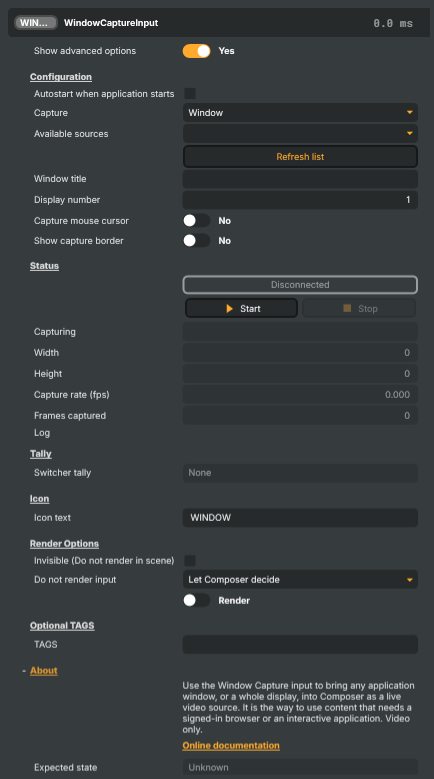
The Window Capture Input brings any application window — or a whole display — into Composer as a live video source. It is the way to use content Composer cannot fetch for itself: a page behind a login or multi-factor authentication, an interactive session, or a desktop application with no streaming output of its own. You sign in yourself, in whatever application you prefer, and Composer captures the resulting window.
It carries video only and is available on Windows only.
Two things make it different from pointing a web input at a URL. It is not limited to web pages — it captures any application window. And because it reads the window's own composition rather than the screen in front of it, a captured window keeps being captured while it sits behind other windows, so you can work on top of a source that stays on air underneath — with one caveat for video, covered in Capturing video, and content that will not capture.
The picture arrives uncompressed, with no encoding step anywhere in the path. That matters when something downstream is measuring the picture rather than just showing it — a tracker or an analysis operator working from on-screen content sees the original pixels instead of compression artefacts.
Choosing what to capture
Set Capture to Window or Display, then pick from Available sources. The list keeps itself up to date, so an application you open after adding the input appears on its own; Refresh list re-reads it immediately.
A window is remembered by its title, not by the window itself, because a window only exists for as long as that run of the application does. Saving the project therefore keeps working after the application is restarted, or after the project is opened tomorrow. An exact title wins; otherwise the first window whose title contains the text is used — so a short, stable fragment keeps matching when an application rewrites the rest of its title bar.
You can change the target while the input is on air. It re-attaches without stopping.
Letting Composer open the browser
When what you want on air is a web page, the input can open a browser itself rather than capture one you opened by hand. Set Launch browser and give it an Address. See Settings below.
It is worth doing even though capturing a browser you opened yourself works, because three awkward things stop being your problem:
- The window is found by process, not by title. A browser window's title is the title of the page in it, so it changes whenever the page does — and a title that changes is a poor way to find a window again. A browser Composer opened is one it can always identify, however the page renames itself.
- The page is not throttled for being behind Composer. This is the caveat described in Capturing video, and content that will not capture, and a browser Composer opens is started in a way that prevents it. You no longer need a spare monitor to keep a page drawing.
- The browser closes when the input does, and is closed for you if Composer itself is killed while it is running — so a signed-in browser is not left running on a machine nobody is sitting at. There is one brief moment as the browser starts, before that protection takes hold, where a crash could leave it open; if it ever happens you will see a browser window nobody closed, and closing it is all that is needed.
You sign in by hand, once. The browser keeps its own settings and sign-ins between runs, in a folder belonging to this input, so a page behind a login or multi-factor authentication needs signing into the first time and not again. Use Browser window while you do it, so you have an address bar and a sign-in that opens a second window still works. Page only gives a cleaner picture — no tabs, no address bar — but cannot be navigated, so sign in first and switch afterwards.
Each input gets its own folder for this, and that matters: two inputs pointed at the same one will not both work, because a browser asked to share settings another browser already has open simply hands over its address and exits. Renaming an input does not disturb it, so a sign-in survives that too.
Pages that decide nobody is watching
Some pages put a dialog over themselves, or sign you out, when they conclude nobody has been there for a while — which is a problem for a source that is meant to sit on air unattended.
Keep page awake addresses this by delivering a harmless event to the page every so often. The default is a pointer movement, and it is worth knowing exactly what that is and is not: the movement happens inside the page, so it does not move your real mouse pointer, does not need the window to be in front, and cannot land in another application. It also cannot press anything — a movement has no button — so it will not activate a link, submit a form or dismiss a dialog. It crosses the middle of the page and returns to the edge, so that what the page is showing sees the movement without anything being left sitting under the pointer on air.
What it does not do. It delivers an event; it does not do anything the page may be asking you to do. A page that keeps its session only while you take some action in it — answering a prompt, making a choice within a time limit, doing whatever the page is for — is not asking whether anybody is there, and no event can stand in for that. So this setting may keep a page alive and it cannot promise to: whether it helps depends on what that particular page is watching for.
If a page still times out with this on, try the other Event kinds — a key press, or a scroll — in case it responds to one of those rather than to the pointer. It is also worth moving the mouse over the page yourself for a while and watching what happens: a page that times out even then is not responding to pointer movement at all, and the settings here are unlikely to change that. What it is watching for is not something Composer can determine for you.
Composer does not dismiss such a dialog if one appears. Keeping the page awake is about the dialog not appearing in the first place.
While it runs
The Status section reports what it attached to, the size of the picture, and how fast the source is producing new ones.
That rate is a property of the source, not of your project: the capture delivers a new picture when the window changes, not on a clock. A still page produces almost nothing, and the last picture is held — that is normal and is not a fault. A video playing inside the window produces its own rate.
Moving or resizing the window is handled while running; the picture follows the new size. Closing the window is not an error either — the input goes back to looking for it and re-attaches when it returns.
Capturing video, and content that will not capture
Composer's capture does not care whether the window is covered — it reads the window's own composition, not the screen in front of it. The application being captured may care. Many applications, web browsers above all, notice when their window is completely covered by another window and throttle or stop drawing it to save power. The capture is still working at that point; there is simply nothing new being drawn for it to take, so the picture goes still, stutters, or lags behind.
Video is where this shows up first, because it is the content that needs a new frame most often.
If a window playing video captures as frozen, jerky or stale:
- If it is a web page, let Composer open the browser — see Letting Composer open the browser. A browser Composer opens is started in a way that stops it throttling a covered window, which removes the problem rather than working around it.
- Move the window to a second monitor, where nothing covers it. The answer for an application Composer cannot open for you, and it needs nothing configured.
- Failing that, keep some part of it uncovered — it is being completely covered that triggers the behaviour, so a window that is merely partly overlapped is usually fine.
- Putting it on another virtual desktop does not help, and such a window is not offered in Available sources at all: Windows stops composing a window on a desktop you are not looking at, so there is nothing to capture.
Protected content will not capture. Streaming services that mark their video as protected are honoured by the operating system, which composes the protected area as black — the same black a screen recorder would get. The rest of the window usually captures normally, leaving a black rectangle where the video should be. Composer notices an all-black picture and says so in the input's Log rather than leaving you to work it out. There is no setting that works around this; it is the protection doing what it is for.
Notes
- A minimised window produces nothing. Windows stops composing it, so the last picture is held until the window is restored.
- The mouse cursor and the capture border are off by default. Both are drawn into the picture when enabled, so leave them off unless you want them on air. Older Windows versions may not be able to turn either off.
- Capture is read-only. Composer does not click or type into the window; you drive it yourself. The one exception is Keep page awake, which sends a pointer movement — or, if you choose one, a key press or a scroll — into a page in a browser Composer opened. It never clicks, and it never reaches a window Composer did not open.
- A browser Composer opened is closed when the input stops, so anything you were doing in that window goes with it. It is a source, not a browser to work in.
- The Keep page awake settings are fixed while the input is running. They are applied when the browser opens, so stop the input to change the event or the interval, then start it again.
- Starting again is held back for a moment after stopping, while the browser finishes closing. Start comes back on its own once it has; nothing needs to be pressed in the meantime.
Window Capture Input - Settings

| Property | Description |
|---|---|
Show advanced options |
Show or hide the input's advanced settings in the editor UI. [default=false]. |
Configuration
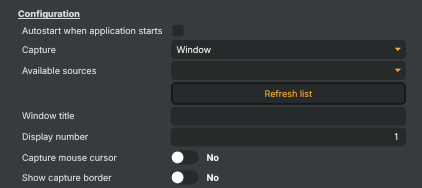
Configuration — what to capture and how.
| Property | Description |
|---|---|
Autostart when application starts |
When On, the input starts capturing automatically when the project loads. [default=false]. |
Capture |
Whether to capture a single window or a whole display. [default=Window]. Switching between the two while capturing re-attaches without stopping the input. |
Available sources |
Picker listing the windows (or displays) available to capture right now. The list re-reads itself every couple of seconds, so an application opened after this input was added turns up on its own; RefreshTargetsCommand re-reads it immediately. Choosing an entry writes WindowTitle or DisplayIndex, which are the values actually saved with the project; scripts and the API normally set those directly instead of going through this list. |
Refresh list |
Re-reads the list of windows and displays on this machine immediately, without waiting for the automatic refresh. |
Window title |
Title of the window to capture. Used when CaptureTarget is Window. An exact title match wins; failing that the first window whose title contains this text is used, so a short, stable fragment ("Scoreboard", "Wikipedia") keeps working when a browser rewrites the rest of the title. A window is matched by title rather than by handle because a window handle is only valid for as long as that instance of the application runs — a title survives a restart. |
Display number |
Which display to capture, counting from 1. Used when CaptureTarget is Display. |
Capture mouse cursor |
Whether the mouse cursor is drawn into the captured picture. [default=false]. Ignored on Windows 10 builds older than 2004, which always draw it. |
Show capture border |
(advanced) Whether Windows draws its yellow "being captured" border around the source. [default=false]. The border is part of the captured picture, so it is normally left off. Ignored on Windows builds older than Windows 11 21H2, which always draw it. |
Browser
Browser — launching a browser for this input to capture, and keeping its page awake.
| Property | Description |
|---|---|
Launch browser |
Whether this input launches its own browser to capture, and what kind of window it asks for. [default=Off]. |
Address |
Address the launched browser opens. Used when SpawnBrowser is not Off. Must be a complete http or https address. |
Keep page awake |
How often a synthetic event is delivered to the launched browser's page to stop it deciding nobody is there, in seconds. [default=60]. Set KeepBrowserActive to switch it on. |
Interval (seconds) |
Seconds between the events sent when KeepBrowserActive is on. [default=60]. |
Event |
(advanced) Which event is sent to keep the page awake. [default=MouseMove]. |
Browser path |
(advanced) Full path to the browser to launch. Empty searches the usual install locations. |
Profile directory |
(advanced) Directory holding the launched browser's profile — its sign-ins, cookies and settings. Empty uses a directory of this input's own, under the user's local application data, which is what keeps a sign-in across restarts and across renaming this input. |
Automation port |
(advanced) Port the launched browser listens on for the connection that keeps its page awake. [default=0], which picks a free port automatically. |
Extra switches |
(advanced) Extra command-line switches for the launched browser, space separated, each starting with --. Appended after the ones this input always passes, so they can override them. |
Status
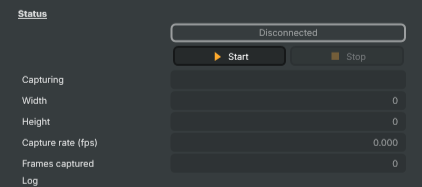
Status — capture state, controls and read-only statistics.
| Property | Description |
|---|---|
ConnectionStatus |
Current capture state (Disconnected, Connecting, Connected). Read-only. Connecting means the input is running but has not found its window yet — which is the normal state while the application it belongs to is still starting. |
Start |
Begins capturing the selected window or display. |
Stop |
Stops capturing and releases the capture session. |
Capturing |
Full title of the window actually attached to, which is usually longer than the text searched for (read-only). |
Width |
Width of the captured picture in pixels (read-only). Changes when the window is resized. |
Height |
Height of the captured picture in pixels (read-only). Changes when the window is resized. |
Capture rate (fps) |
Frames captured per second, averaged over the last second (read-only). This is the rate the source is actually changing at, not the project's frame rate: a still page produces almost nothing, and a video playing in the window produces its own rate. |
Frames captured |
(advanced) Total frames captured since the input started (read-only). |
Launched browser |
(advanced) The browser this input launched, if it launched one (read-only). Empty when capturing a window somebody else opened. |
Page awake events |
(advanced) How many events have been delivered to keep the page awake since the input started (read-only). A count that stays at zero while KeepBrowserActive is on means the connection to the browser never succeeded — the reason appears in the log. |
Log |
Recent status, information and error messages from the input (read-only). |
Inherits from: AbstractInput, AbstractAudioProcessing, AbstractAudioMetering, NamedModel.
See also: Window Capture Input in Script Engine Objects.
Shared input properties
Every input — regardless of source type — exposes the following property groups. They are surfaced in the property panel only when Show advanced options is enabled on the input.
Icon
Icon text— short text shown on the input's icon in the Inputs list. Useful as a quick visual label (channel number, mic name, camera position) to tell otherwise-similar inputs apart at a glance. Empty by default; has no effect on rendering or routing.
Audio mixer
Hide in audio mixer— when on, hides the input from the audio mixer view without disabling its audio. Useful for de-cluttering the mixer while keeping the audio routed (e.g. fixed background music, ambient beds, pre-aligned playout). [default=false]
Render Options
Invisible (Do not render in scene)— when on, the input is skipped during rendering and produces no picture on any layer or scene. Audio routing is unaffected. Toggle from a script for cued-in / cued-out behaviour during a show. [default=false]Do not render input— disables the input's internal render entirely (no decode or capture work is done). Stronger than Invisible: that one renders but doesn't display; this one stops the input from doing any work at all. Useful for reducing CPU / network load on heavy sources (e.g. high-bitrate RTMP / SRT streams, large media files) when the input is temporarily not needed. Audio meters are cleared while disabled. [default=false]Do not render inputcontroller — chooses what drives the Do not render input flag.Let Composer decide(the default) hands control to the project-level Render Tuning optimiser, which automatically pauses inputs that aren't used by any active scene.Manual Configurationignores Render Tuning and lets the Do not render input toggle control the flag directly — use this to keep a network source warm even when it's currently off-air, or to take a heavy input down by hand regardless of scene activity. [default=Let Composer decide]
Optional TAGS
TAGS— one or more free-form tag words used to classify this input (typically space- or comma-separated). Picked up by Composer's Smart Search to filter or find inputs by category — e.g.camera,music,interview,sponsor. Has no effect on rendering.