

Surface Blur
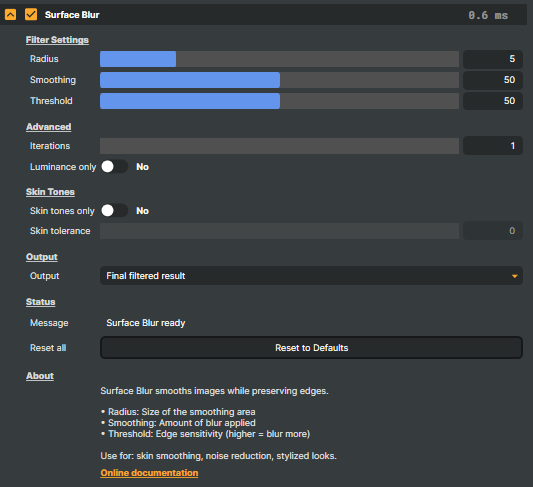
The Surface Blur operator is an edge-preserving smoother. It softens flat areas of the picture while leaving sharp edges and contours crisp — the opposite of a Box or Gaussian blur, which softens everything uniformly. The result is a clean, polished image that still reads as in-focus.
When to use it
- Skin smoothing in beauty, glamour, and interview shots — reduces texture and small imperfections without making the whole frame go soft.
- Noise reduction on low-light or high-ISO camera sources, before encoding or compositing.
- Compression-artefact cleanup on sources that have already been through a heavy codec.
- Painterly looks for stylised graphics — push it harder and the picture takes on a smoothed, almost-illustrated feel while object outlines stay intact.
- Pre-key cleanup when softening the inside of a region without rounding off the edges that the keyer relies on.
How to tune it
Three controls do most of the work:
- Radius — how big an area the filter samples. Small values (1–5 px) are right for skin and grain; larger values (up to 20 px) push the operator toward a painterly look at higher GPU cost.
- Smoothing — how much the flat areas are actually softened.
0is a no-op; mid values (40–60) suit skin and noise; high values produce a stylised, waxy finish. - Threshold — how aggressively edges are protected. Low values preserve more edges (only the flattest patches smooth); higher values let the operator roll over softer edges too. Tune this together with Smoothing to taste.
A diagnostic Output mode lets you switch the view to Original, Difference (showing exactly what was smoothed), or Skin mask — useful while dialling in the threshold.
Surface Blur - Settings
Filter Settings
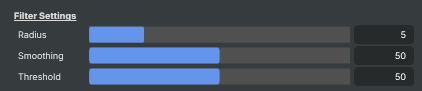
Filter Settings — main controls for the smoothing strength and edge sensitivity.
| Property | Description |
|---|---|
Radius |
Size of the smoothing area in pixels. [min=1, max=20, default=5]. Small values (1-5) clean up fine grain and skin texture. Larger values (10-20) produce a stronger painterly smoothing but cost more performance. |
Smoothing |
How much the smooth areas are softened. [min=0, max=100, default=50]. 0 leaves the picture untouched. Mid values (40-60) work well for skin smoothing and gentle noise reduction. High values (80-100) produce a strongly stylised, almost waxy look. |
Threshold |
How strongly edges are preserved. [min=0, max=100, default=50]. Low values keep more edges sharp and only smooth the very flattest areas. Higher values let the smoothing roll over softer edges as well, which removes more detail. Tune in combination with Smoothing to taste. |
Advanced
Advanced — extra controls for stronger smoothing and colour handling.

| Property | Description |
|---|---|
Iterations |
(advanced) How many times the filter is applied in sequence. [min=1, max=5, default=1]. 1 is normal use. Higher values produce a much stronger, more painterly result at the cost of performance. |
Luminance only |
(advanced) When on, smooths only the brightness of the image and leaves the colour detail untouched. Useful for skin smoothing because it stops the colour from going flat or plastic. |
Skin Tones
Skin Tones — restrict the smoothing to areas detected as skin.

| Property | Description |
|---|---|
Skin tones only |
(advanced) When on, the smoothing is applied only to areas of the picture that look like skin. Backgrounds, clothing and props are left alone. Use together with SkinTolerance to tune the detection. |
Skin tolerance |
(advanced) How forgiving the skin detection is. [min=0, max=100, default=50]. Low values match only obvious skin; high values pick up a wider range of warm tones at the risk of including wood, sand or other skin-like colours. Affects only when SkinTonesOnly is on. |
Output
Output — choose what is shown for monitoring and fine-tuning.

| Property | Description |
|---|---|
Output |
What is shown in the output. Final shows the normal smoothed result. Original bypasses the operator. Difference shows just what was smoothed away, and Skin Mask shows the skin-detection mask — both are diagnostic views useful while tuning. |
Status
Status — operator status messages.

| Property | Description |
|---|---|
Message |
Status message from the operator (read-only, debug). |
Reset all |
Reset all settings to their defaults (Radius 5, Smoothing 50, Threshold 50, Iterations 1, Luminance/Skin off, Skin tolerance 50, Output Final). |
Inherits from: AbstractOperator, AbstractAudioMetering.
See also: Surface Blur in Script Engine Objects.