

Roulette Wheel Tracker V2
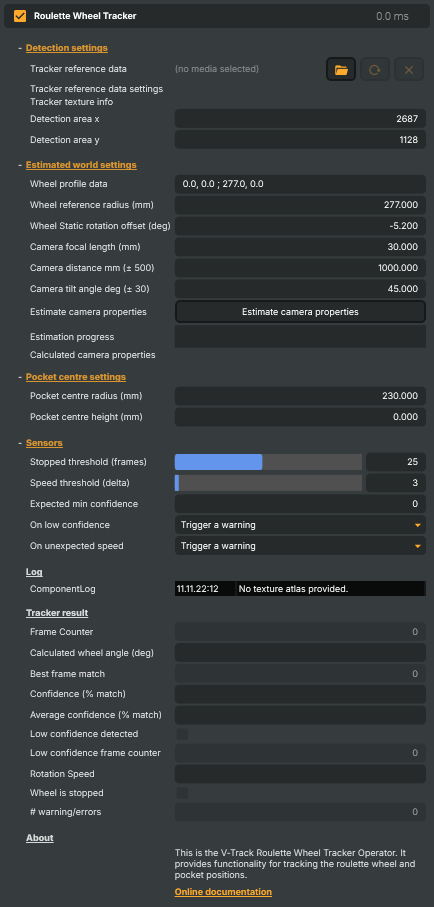
The Roulette Wheel Tracker V2 locks onto a real, physical roulette wheel in a live camera feed and reports back, every frame, exactly which way it's pointing. Combined with the matching Roulette Wheel Visualizer V2, it lets a casino broadcast overlay graphics — virtual wheel renderings, winning-pocket highlights, sponsor logos, animated pointers — that stay glued to the wheel as it spins through the moment the ball drops.
Where a generic motion-tracker only knows "something is moving," this operator knows which pocket on a 37- or 38-pocket roulette wheel is at any given screen position, in radians, every frame. That's what makes per-pocket overlays — "winning number" highlights, single-pocket sponsor branding, multi-slice odds graphics — possible.
How tracking works
The operator does its job by comparing each incoming video frame against a reference texture atlas — a .taf (or encrypted .tafx) file built up-front from a representative recording of the wheel. The atlas is a grid of the wheel at every rotation it can be in; each frame, the tracker finds the closest match and reports the corresponding angle.
Because everything runs on the GPU, the tracker can sustain real-time frame rates at HD and UHD while still using all the original full-resolution detail to match. The reference atlas also captures per-pocket geometry — the 3D positions of each pocket on the wheel surface — which the operator exposes as a CudaMesh for visualizers to consume.
There are two pieces a project always needs:
- A TAF reference file for the specific wheel and camera angle you're broadcasting. One TAF per physical wheel + camera position — if either changes (camera repositioned, different table), you'll need a new TAF.
- A detection area (
Detection area x/Detection area y) anchored over the wheel in the camera frame. The size is set by the TAF itself; you just tell the tracker where on the frame the wheel sits.
What you control
The property panel is organised around the tracking lifecycle:
- Detection settings — the TAF reference file, the detection-area position on the frame, and a
Reverse angleswitch for TAFs built in the opposite rotation order from your camera. - Wheel settings — the number order (canonical European single-zero ordering by default — switch for American double-zero), the wheel profile polygon (cross-section of the wheel rim in mm), and mesh density / target render resolution so the 3D mesh fed to visualizers matches the downstream output.
- Sensors — thresholds for "wheel is stopped" detection, unexpected-speed warnings, and low-confidence alerts. Wire
WheelIsStoppedto a Script Engine cue to trigger close-up cuts or graphics when the ball settles. - Log — recent component messages: TAF load results, parse errors, low-confidence and speed warnings (throttled to one entry per 10 seconds so the log doesn't flood during a bad-match storm), and licence-trial-expiry notifications.
- Tracker result — live read-outs: frame counter, calculated wheel angle, best frame match index, per-frame and rolling-average confidence, rotation speed,
WheelIsStopped, and a running count of warnings. Useful for showing tracking health on a monitoring dashboard.
Pairing with a visualizer
The tracker is half of a pair. On its own it doesn't draw anything — it just reports angles and a mesh. To put a graphic on screen, drop one of these visualizers on a layer downstream:
- Roulette Wheel Visualizer V2 — full-wheel renderer that maps the tracked mesh into a textured 3D overlay; the most common pairing.
The visualizer searches the scene for the first available tracker and reads its CudaMesh and angle each frame, so as long as both operators are in the same project the wiring is automatic.
Example use cases
- Live casino broadcasts — overlay the chosen-number highlight, animated pointer, sponsor branding, or pocket-locked graphics on a real wheel as it spins.
- Sportsbook content — running odds or commentary tied to each pocket, updated frame-accurate as the wheel turns.
- Multi-camera shows — pair a single TAF reference with the same camera angle across multiple feeds so a single shared graphic style works across all of them.
- Multibranding outputs — see the Roulette multibranding tutorials for projects that fan one tracked wheel out into multiple branded output streams.
Licensing
The Roulette Wheel Tracker V2 requires the VTrack Roulette plug-in licence (the underlying plug-in entry is Roulette Wheel Tracker). Without it the operator still runs — but only for up to 2 hours per Composer session. Once that budget is exceeded the operator auto-bypasses (its IsActive flips to false and the layer falls through unchanged), and a single warning is written both to the global Composer log and to the operator's Log panel.
The same 2-hour budget applies under a Composer Core licence regardless of plug-in licensing — Core projects can run the tracker for up to 2 hours per session for evaluation, then it auto-bypasses.
Restart Composer to reset the budget for another evaluation session. Production deployments should run on a Subscription or Full licence with the VTrack Roulette plug-in enabled.
Practical tips
- Build the TAF when the camera is final. Even small camera moves invalidate the TAF — every band of the atlas was captured at a specific perspective. Lock the camera before generating the reference.
- Reframe? Rebuild. If the wheel moves in the frame, only
Detection area x/yneed updating — the TAF itself is fine. But if the camera angle changes, build a new TAF. - Watch the Log panel during setup. TAF load errors, parse failures, and confidence warnings all surface there before you go live. A green
Logpanel with just the "first frame processed" info line is the target state. - Tune
Sensorsfor the room. Casino floor cameras vary in noise and stability — pickExpected min confidencebased on a real test session, and start withOn low confidence = TriggerWarningto gather data without escalating to errors. - Use
WheelIsStoppedfor cues. Once the ball settles, the tracker reports the wheel as stopped afterStoppedWheelFrameCountThresholdframes at the same angle. That's the right moment to trigger winning-number graphics from a script.
Roulette Wheel Tracker V2 - Settings
Properties marked (
Components) or (AudioMixer) broadcast a livePropertyChangedevent to clients subscribed to that WebSocket channel.
Detection settings
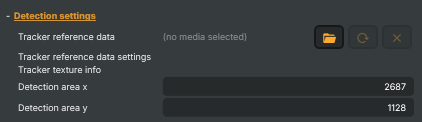
Detection settings — the reference TAF file and where on the frame to search for the wheel.
| Property | Description |
|---|---|
Tracker reference data |
Path to the TAF (Texture Atlas File) reference that the tracker matches each video frame against. The TAF is generated up-front from a representative recording of the wheel; without one, the tracker cannot detect anything. Swap files from a script if you switch to a different physical wheel between matches. |
Detection area x |
X coordinate (pixels) of the top-left corner of the detection area on the input frame. Position the area so it sits squarely over the spinning wheel; the area size is derived from the TAF reference. Adjust together with TrackerDetectionAreaTop whenever the camera shot is reframed. |
Detection area y |
Y coordinate (pixels) of the top-left corner of the detection area on the input frame. Used together with TrackerDetectionAreaLeft to anchor the search window over the wheel. Re-check this value whenever the camera or the wheel itself is moved. |
Reverse angle |
Negates the detected wheel angle when on. Turn on if the TAF reference was captured with the wheel rotating in the opposite direction (clockwise vs anticlockwise) from the live broadcast. Easiest way to tell: spin the wheel and watch whether the projected pocket overlay moves with or against the real pockets. |
Log
Log — recent component messages and warnings.

| Property | Description |
|---|---|
ComponentLog |
Wheel settings
Wheel settings — pocket layout, wheel cross-section profile, and mesh density.
| Property | Description |
|---|---|
Number order |
Comma-separated pocket numbers in clockwise order as seen from above, e.g. "0, 32, 15, 19, …". Default is the standard 37-pocket European layout starting at 0; American 38-pocket wheels add a "00" entry. Match the order to the physical wheel exactly — a wrong sequence will report the wrong winning number. |
Wheel profile polygon (Components) |
Cross-section of the wheel as an array of (radiusMm, heightMm) points, traced from the centre outwards. Defines the physical shape so visualizer overlays sit on the rim, the cone and the pocket band correctly. Edit visually with the polygon editor, or set from a script when switching between known wheel models. |
Mesh density |
Quality multiplier for the wheel mesh used by visualizers. [min=0, max=2, default=0]. 0 keeps the mesh light and is right for most setups; raise to 1 or 2 if the projected wheel looks blocky on very high-resolution outputs. |
Target render width |
Width (pixels) of the visualizer output that the wheel will be rendered into. Default 1920. Set this to the scene width of the visualizer — not the tracker scene — so the mesh density matches the destination size. |
Target render height |
Height (pixels) of the visualizer output that the wheel will be rendered into. Default 1080. Pair with TargetRenderWidth and use the visualizer's scene resolution, not the tracker scene resolution. |
Wheel Static rotation offset (deg) |
Constant rotation offset (degrees) added to the detected angle. [min=-180, max=180, default=0]. Use to align pocket 0 to its true on-wheel position when the TAF reference was captured at a slight rotation. Tweak by a degree at a time and watch a known-position pocket overlay until it sits centred. |
Number ring edge index |
Index (0-based) of the profile edge that carries the painted numbers. Default 1. The reference-image generator only labels this band with pocket numbers; pick the edge that corresponds to the visible numbered ring. |
Generate Reference Image |
Generates a reference image of the wheel using the current profile, number order and ring edge. Use as a sanity check after changing WheelProfilePolygon or NumberOrder. The image is written next to the project; open the folder via OpenImageFolderCommand. |
Open image folder |
Opens the folder where reference images produced by GenerateReferenceImageCommand are written. |
Sensors
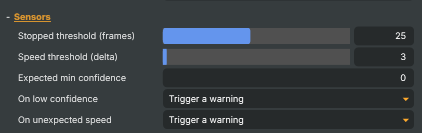
Sensors — thresholds for warnings on stopped wheels, unexpected speed changes, and low confidence.
| Property | Description |
|---|---|
Stopped threshold (frames) |
Number of consecutive frames at the same detected angle before the wheel is reported as stopped. [min=3, max=50, default=25]. Lower values declare a stop sooner but risk false positives when the wheel slows briefly; higher values are more conservative. Read WheelIsStopped from a script to trigger close-up cuts or graphics when the ball settles. |
Speed threshold (delta) |
Maximum allowed change in rotation speed between frames (degrees) before an "unexpected speed" warning is raised. [min=2, max=50, default=3]. Use to flag tracker glitches where the reported angle jumps unrealistically. Combined with TrackerUnexpectedSpeedAction. |
Expected min confidence |
Minimum match confidence (%) considered acceptable. [min=1, max=100]. Frames below this trigger the action selected in TrackerLowConfidenceAction. Casino setups typically want 70 or higher. |
On low confidence |
Action taken when match confidence falls below ExpectedMinDetectionConfidence. Pick TriggerWarning for log-only reporting, or TriggerError to mark the broadcast as having a tracker fault. |
On unexpected speed |
Action taken when the rotation speed jumps by more than MaxSpeedChangeThreshold between frames. Helps catch bogus angle readings that would otherwise jerk the overlay graphics. |
Tracker result
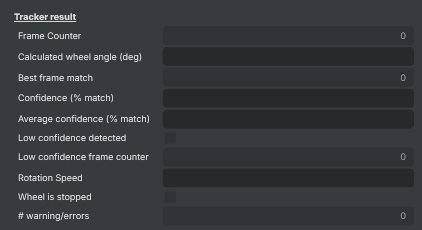
Tracker result — live detection output read by visualizers and scripts.
| Property | Description |
|---|---|
Frame Counter |
Frame counter that increments once per processed frame. Updates every frame. |
Calculated wheel angle (deg) |
Latest detected wheel rotation angle (read-only), formatted as a degrees string with one decimal. Updates every frame. Read this from a script when you want a display-friendly value; for numeric work consume the per-pocket angles via the visualizer. |
Confidence (% match) |
Match confidence (read-only) for the most recent frame as a 0–1 fraction (displayed as %). Values around 0.8 or higher are healthy; sustained drops indicate camera shift, lighting change or a wrong TAF reference. |
Average confidence (% match) |
Rolling average match confidence over roughly the last 200 frames (read-only), 0–1 fraction (displayed as %). Smoother than BestFrameConfidence; use as the recalibration trigger metric in scripts. |
Low confidence detected |
True when the current frame's confidence is below ExpectedMinDetectionConfidence (read-only). Use from a script to flash an on-screen warning or pause overlay updates. |
Low confidence frame counter |
Running count of frames with low confidence since the project started (read-only). Useful as a session-quality indicator; a steadily climbing counter means the tracker needs attention. |
Rotation Speed |
Wheel rotation speed in degrees per frame, formatted as a string with one decimal (read-only). Sign indicates direction. A value near zero combined with WheelIsStopped means the wheel has settled. |
Wheel is stopped |
True when the wheel has shown no rotation for StoppedWheelFrameCountThreshold frames (read-only). Cleanest signal for "ball has settled" — script automated cuts and number-display reveals on this transition. |
# warning/errors |
Number of errors or warnings in the current session. |
Inherits from: AbstractOperator, AbstractAudioMetering.
See also: Roulette Wheel Tracker V2 in Script Engine Objects.