

Remote control & Stream Deck
The most ergonomic way to drive a running Composer show from a hardware control surface is via Bitfocus Companion, free and open-source software that maps Stream Deck buttons to HTTP requests. Composer's Connectors make ideal Companion targets because each Connector is a single named HTTP endpoint that triggers a defined sequence of actions inside Composer.
You can drive Composer from:
- A physical Stream Deck (any model — XL, MK.2, Mini).
- The Stream Deck Emulator in any web browser, including phones and tablets, useful when you don't have hardware on hand.
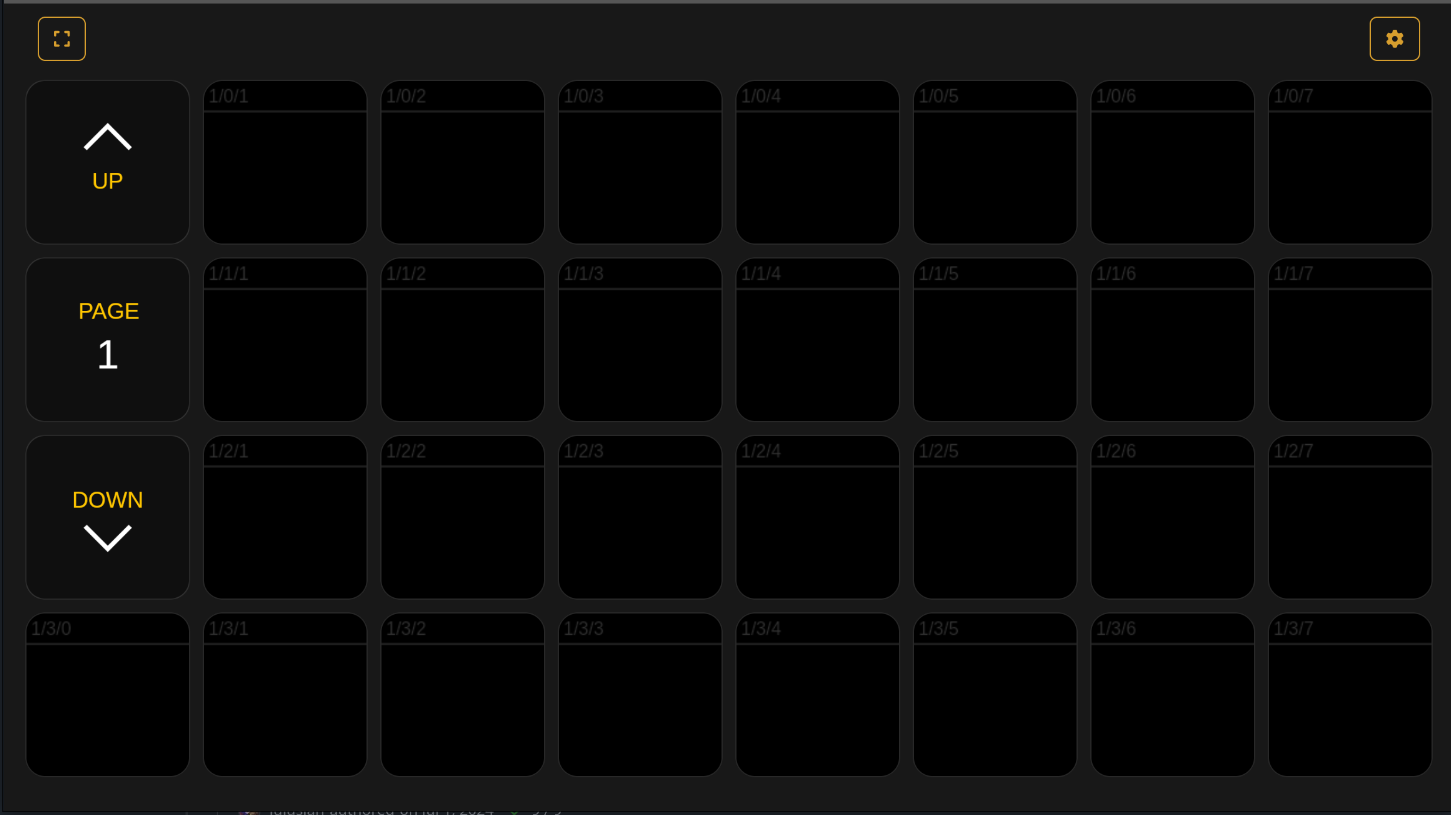
Setup overview
Three things have to be in place:
- Companion — the bridge between hardware buttons and HTTP requests.
- Composer Web API — receiving the HTTP requests.
- Connectors — the named endpoints Companion will call.
1. Download and install Companion
Get Companion from bitfocus.io/companion. Its official documentation covers installation and basic usage in detail.
2. Configure Composer for remote control
Open Edit → Settings → Web API in Composer and enable Web API. Confirm the port (default 44433):
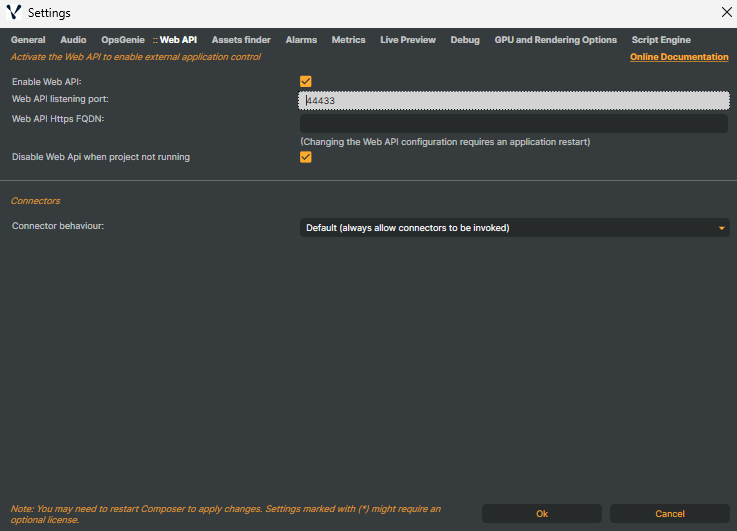
If you're using API keys (recommended for any non-LAN-isolated setup), you'll also need to pass the key with each Companion request.
Hello World walkthrough
A simple end-to-end example — a Stream Deck button that toggles a "Hello World" text element on/off.
Add a text input to the scene
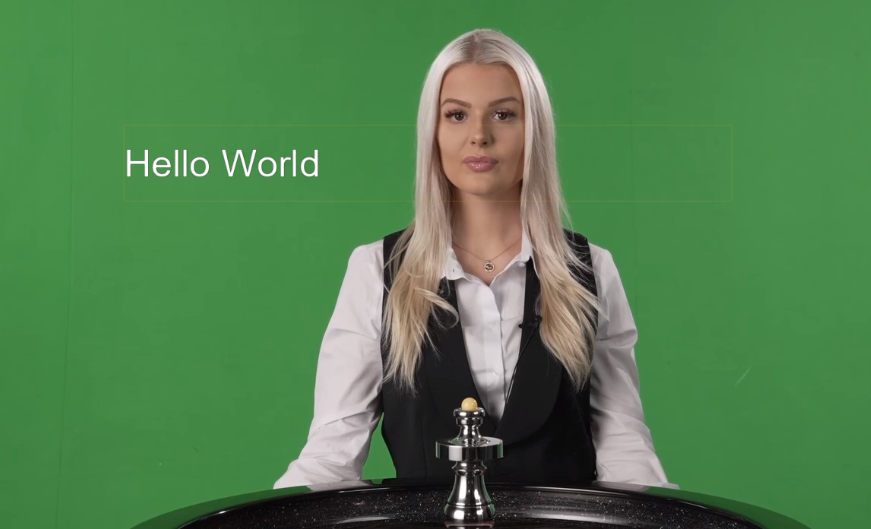
Add a Text Input showing "Hello World":
Add the connectors
In the Connectors tab, click Add Connector twice to create two Connectors:
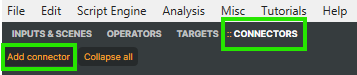
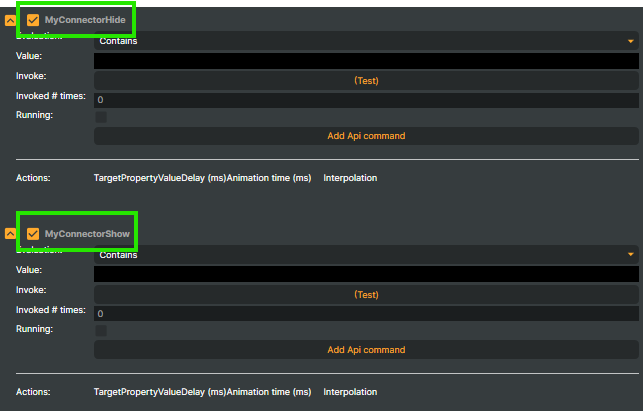
Rename them to MyConnectorHide and MyConnectorShow:
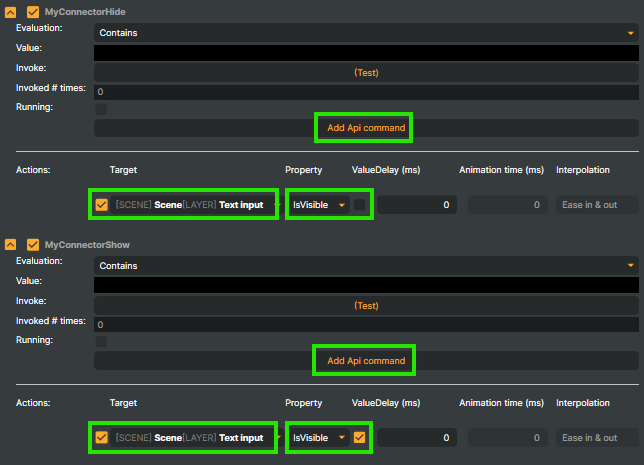
For each, add an API Command that targets the Hello World layer's IsVisible property — false for MyConnectorHide, true for MyConnectorShow:
Configure Companion
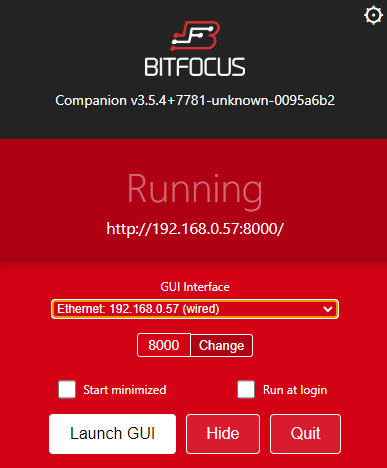
Launch Companion and open its GUI:
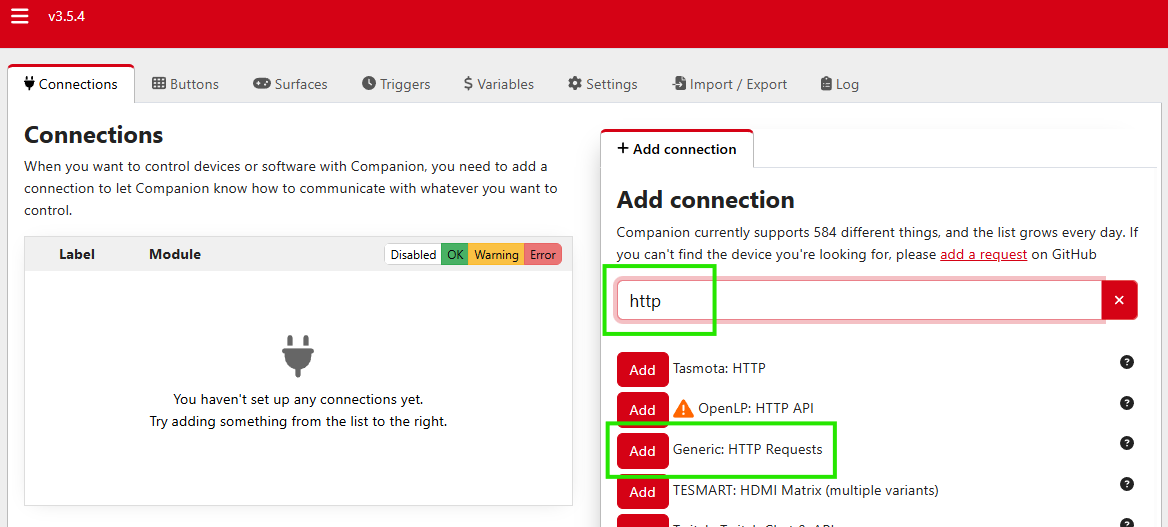
Open the Connections tab and add a new connection of type Generic HTTP Requests:
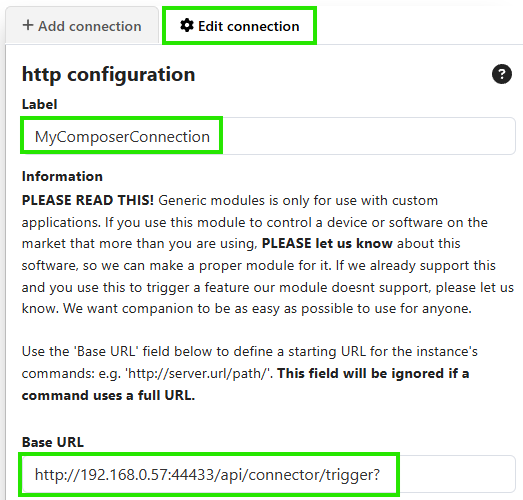
Set the connection's Base URL to your Composer's Web API endpoint:
http://<COMPOSER_HOST>:44433/api/connector/trigger?
…replacing <COMPOSER_HOST> with Composer's IP (e.g. 192.168.0.57):
Save:
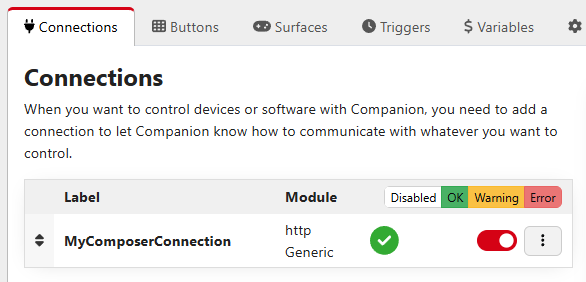
The connection appears in the list with a green active status:
Bind commands to buttons
Open the Buttons tab:
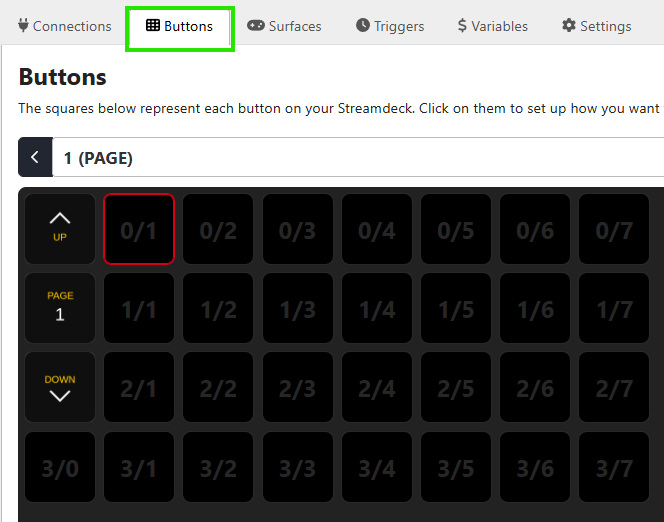
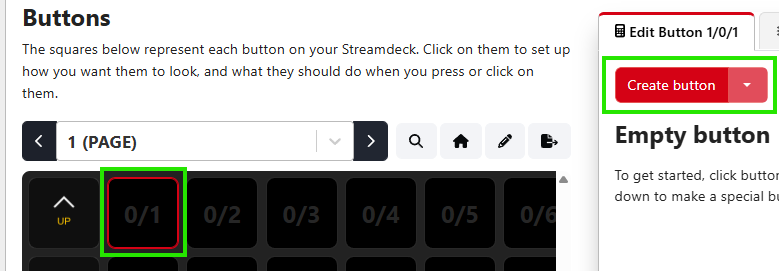
Click an empty button cell to start creating a button:
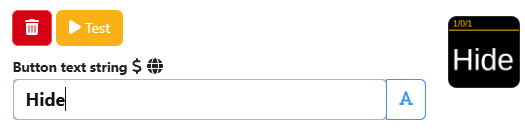
Set the button text to Hide:
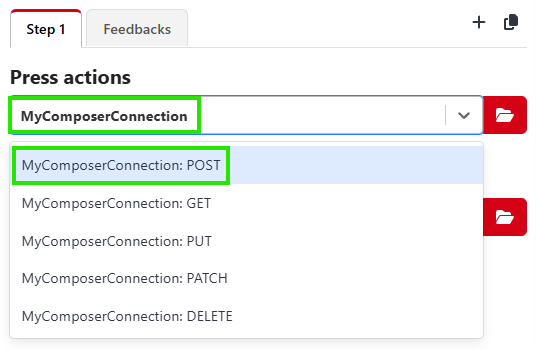
In Press actions, choose your MyComposerConnection connection and the POST method:
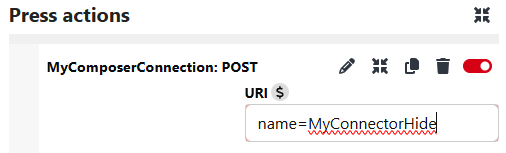
Set the URL to name=MyConnectorHide:
Repeat for a second button bound to name=MyConnectorShow with the text Show.
Try it out
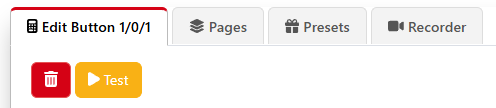
Test the button using the Test action in the Companion GUI, with Shift + Click, or via the mobile emulator at:
http://<COMPANION_HOST>:8000/tablet
…where <COMPANION_HOST> is the host running Companion:
The text element on the Composer scene toggles visibility on each button press.
Other types of integrations
Companion is the most ergonomic Stream Deck path, but the same /api/connector/trigger endpoint is callable from anything that speaks HTTP — backend services, mobile apps, Twitch chat bots, MIDI-to-HTTP bridges. Anything that can make a POST request can drive a Composer show.
Where to learn more
- Connectors — the full Connectors reference, including Connector naming, parameter passing, and Script Engine integration.
- Bitfocus Companion documentation — Companion's own docs.
- Integration guide — when to use Connectors vs HTTP API vs Script Engine for the rest of your integration needs.