
SRT synchronization
SRT synchronization frame-aligns several SRT inputs against each other, so a remote studio's cameras appear in Composer locked to the same instant even though each arrives over its own SRT link.
The use case is a remote production: 1–10 cameras, all genlocked to a shared clock and each encoded and sent to Composer over a separate SRT connection. Because the cameras share one genlock source, every stream carries the same embedded timecode for the same moment of real time. But each SRT link has its own network latency, and that latency varies over time under congestion — so without synchronization the streams drift apart by up to a second or more, and the same real-world instant lands on different output frames. SRT synchronization holds each source back in an adaptive buffer and plays them out on the matching timecode, so all cameras stay frame-aligned and each stream's audio stays locked to its own video.
Synchronization is off by default and opt-in per input, so existing projects are unaffected.
Prerequisites
- Genlocked sources. All cameras must share a common genlock so they run at the same frame cadence and carry a shared timecode. Synchronizing sources that are not genlocked is not supported.
- Embedded timecode. Each SRT stream should carry SMPTE timecode. Composer aligns best on SMPTE ST 2038 ancillary timecode, which is codec-agnostic and is read back even with hardware decoding. In-stream video SEI (S12M) timecode also works but requires software decoding. Configure the carriage on the SRT Target via Timecode transport.
- Fallback. If a stream carries no embedded timecode, Composer falls back to aligning on the relative PTS/cadence. Because the sources are genlocked this still keeps them cadence-aligned, but it is a weaker guarantee than shared timecode, so the input is flagged as using the fallback and a warning is raised.
Enabling synchronization
Turn on Synchronize with other SRT inputs on each camera's SRT input. All inputs with this option enabled join a single studio synchronization group. You can toggle it on each input directly, or enable the studio cameras together from the SRT Synchronization window described below.
Opening the window
Open the SRT Synchronization window from the application menu: Analysis ▸ Open SRT synchronization….
The window is a floating tool window that both configures the studio synchronization group and lets you follow it live. It stays available while you work elsewhere in Composer.
Configuring the group
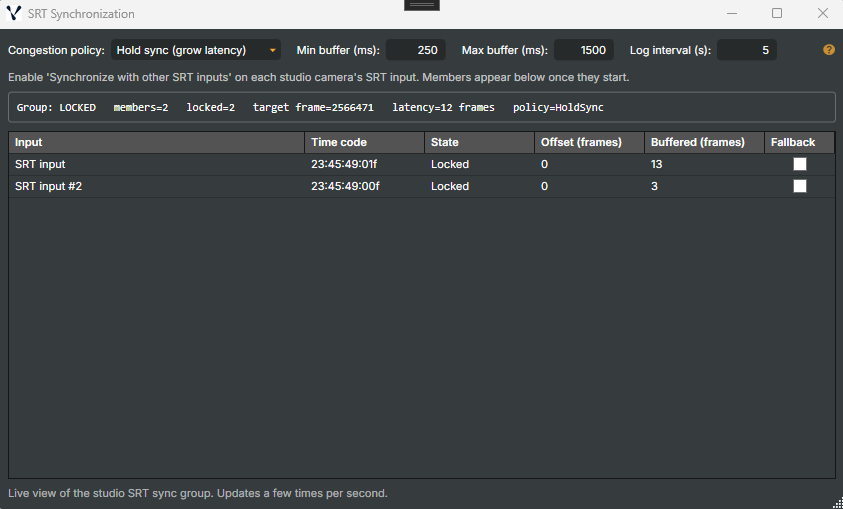
The controls along the top of the window set the group's behaviour:
| Control | What it does |
|---|---|
Congestion policy |
How the group behaves when a source can't keep up — see Congestion policies. |
Min buffer (ms) |
The smallest hold-back buffer each synchronized input keeps, even on a fast link, so it always has headroom to absorb the next jitter spike. Applied to every synchronized input. |
Max buffer (ms) |
The largest hold-back buffer allowed per synchronized input. This caps the memory the group can use; if the spread between the fastest and slowest source is larger than this, they cannot fully align and a warning is raised. Applied to every synchronized input. |
Log interval (s) |
How often the periodic synchronization summary is written to the log. Set 0 to turn the periodic log off. |
Congestion policies
The congestion policy is the most important setting to understand, so it is worth explaining from the ground up. Both policies are just two different answers to the same question, so start with the rule they are both answering.
The rule both policies answer
To keep the cameras aligned, the group plays the same source frame (the same timecode) from every input on the same output frame. Each synchronized input holds its incoming frames in a hold-back buffer, and the group can only play a frame that every member currently has in its buffer. As long as all the links behave, this is effortless: every buffer covers the frame the group wants, the group steps forward one frame per output frame, and all cameras stay locked together.
The policy only comes into play when a link congests — when one camera's SRT connection slows down, its frames start arriving late, its buffer drains, and it no longer has the next frame the group wants to play. At that moment the group has to choose between two options that cannot both be satisfied:
- wait for the slow camera (keep everyone aligned, but delay the whole group), or
- carry on without it (keep the group's delay low, but let the slow camera fall out of sync).
That choice is the congestion policy.
Hold sync (default) — keep every camera aligned
When the slowest camera can't supply the next frame yet, the group waits for it rather than moving on. In practice the group holds its playout on the newest frame that every camera still has, and only advances again once the slow camera catches up.
- Every camera stays perfectly frame-aligned — the group never shows a frame that some camera is missing.
- The cost is delay. To keep matching the slow link, the whole group plays a little further behind real time, and its hold-back buffers fill deeper. The group effectively runs at the latency of its slowest camera, and that latency grows and shrinks as the worst link gets worse or recovers — up to the Max buffer limit.
- In the window: all cameras stay Locked with an offset of ~0, but the group's latency (frames) rises during congestion and falls again as the link recovers.
Choose Hold sync when frame-accurate alignment matters more than delay — a studio or production mix where the cameras must always match, and some extra end-to-end latency is acceptable. This is the default.
Low latency — keep the delay low
The group keeps playing on schedule and does not wait for a struggling camera. A camera that can't supply the current frame is temporarily dropped from the lock — it holds on its last good frame and is flagged out of sync — and it automatically re-locks to the group as soon as its buffer catches back up.
- The group's delay stays low and steady, regardless of how badly one link misbehaves.
- The cost is a brief loss of alignment on the affected camera: it freezes (or repeats its last frame) for the duration of the congestion, then snaps back into sync when it recovers.
- In the window: the group's latency stays low, but the locked count dips while a camera is behind (that camera shows
OutOfSync), then returns to the full count once it recovers.
Choose Low latency when low, predictable delay matters more than momentary alignment — a live production where a short freeze on one camera is tolerable but extra latency is not.
A worked example
Two genlocked cameras at 50 fps, both links steady at ~150 ms. Camera B's link then congests and its frames start arriving about 350 ms late (≈ 17 frames behind Camera A):
| Hold sync | Low latency | |
|---|---|---|
| Camera A | Stays locked, but now plays ~350 ms further behind real time | Stays locked and low-latency |
| Camera B | Stays locked, in step with A | Goes OutOfSync / freezes, then re-locks when the link recovers |
| Group latency | Grows by ~350 ms, then shrinks again on recovery | Stays low throughout |
| Alignment | Always perfect | Camera B briefly out, then back |
How the buffer limits interact
Max buffer (ms) bounds how far either policy can go. Under Hold sync, the group's latency can only grow up to this limit; if the spread between the fastest and slowest link exceeds it, even Hold sync cannot hold everyone — the straggler is flagged OutOfSync and a warning is raised (see Warnings). So Max buffer is really "the most delay I am willing to absorb to keep the cameras aligned." Min buffer (ms) works the other way: it keeps a floor of hold-back even on a fast link, so a briefly-good camera still has headroom to ride out the next jitter spike instead of dropping out at the first hiccup.
You can change the policy at any time — from this window, from project settings, or over the HTTP API — and it applies to the whole group immediately.
Following synchronization live
A summary line shows the group state: whether the group is locked, how many sources are members, how many are locked, the shared target frame, the current group latency (in frames) and the active policy.
Below it, one row per synchronized input shows:
| Column | What it shows |
|---|---|
Input |
The SRT input's name. |
Time code |
The source time code this input is currently emitting. When the group is locked, this is identical across all in-sync members — the quickest way to confirm they are aligned. |
State |
The input's lock state: Locking (buffering toward a common start), Locked (aligned to the group), OutOfSync (fell outside what the buffer can absorb), Fallback (locked via the PTS/cadence fallback because no embedded timecode was present), or NotSynchronized. |
Offset (frames) |
How far ahead of or behind the group target this input is currently running. 0 when locked. |
Buffered (frames) |
How many frames this input is currently holding back. |
Fallback |
Ticked when this input is aligning on the PTS/cadence fallback rather than embedded timecode. |
Warnings
Composer raises a warning on an SRT input when synchronization can't be guaranteed, and clears it automatically when the condition resolves. Warnings are raised when:
- the source's timecode goes off-the-chart (a discontinuity or jump beyond tolerance), so the source can't be aligned;
- the PTS/cadence fallback is engaged because the stream carries no embedded timecode;
- a source under-runs or can't reach the group target for a sustained period;
- the required hold-back exceeds the maximum buffer — the spread between sources is too large to sync at the configured limit.
Where else synchronization status appears
The same live values are available outside the window, for monitoring and automation:
- Input statistics — each synchronized SRT input reports its lock state, offset, buffer used (frames and estimated VRAM) versus target, alongside its other statistics.
- Periodic synchronization log — a summary line per interval (set by
Log interval (s)) covering the group state and every member's offset, buffer and lock state, so a run is diagnosable from the log alone. - Prometheus metrics —
composer_srt_sync_members,composer_srt_sync_locked_members,composer_srt_sync_group_latency_frames,composer_srt_sync_target_frameandcomposer_srt_sync_congestion_policyfor dashboards and alerting. - HTTP API —
GET /api/srtsync/statusreturns the whole group, including each member's time code, in one call.
Note
The SRT Synchronization window closes automatically when you start a new project (File ▸ New) and when you enter performance mode, and can be reopened afterwards.