
Multiviewer
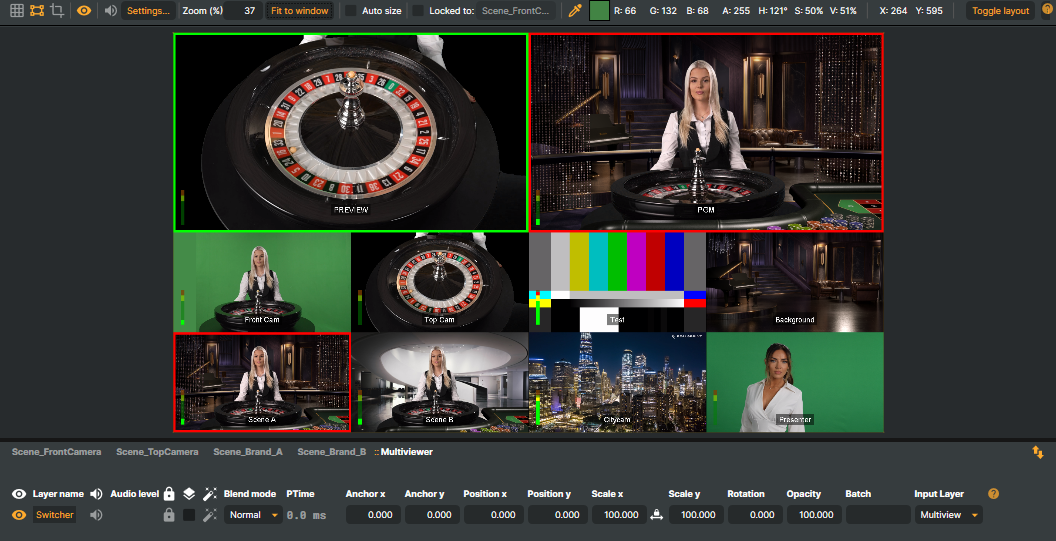
A Multiviewer displays multiple video sources side by side on a single screen, functioning as a command centre for monitoring inputs and scenes during a live show. It is a feature of the Switcher input, which hosts and renders it. Composer's Multiviewer can show up to 13 sources at once, supports up to 4 overlays per multiviewer, indicates Program / Preview state with tally lights, and is fully drivable from Connectors, the Script Engine, the HTTP API, or the Companion app + Stream Deck.
Setup
- Add a
Switcherinput from the Inputs & Scenes tab. - Add the Switcher input to a scene as a layer.
- In the layer's Input Layer dropdown, choose Multiview (one of the Switcher's four outputs — see below).
Switcher outputs
A Switcher isn't a single image — it produces four separate outputs, and the layer's Input Layer dropdown picks which one that layer renders:
| Input Layer | What it shows |
|---|---|
| Output | The switcher's final program output — the foreground / background blend with the crossfade, fade-to-black, and overlays applied. This is the clean feed you send to a streaming target. |
| PGM | The raw on-air (foreground) source on its own. |
| Preview | The raw queued-next (background) source on its own. |
| Multiview | The multiviewer grid described on this page. |
Because the selection is per layer, one Switcher can feed several layers at once, each tapping a different output — for example route Output to a layer going to your program target while a Multiview layer drives a confidence monitor, all from the same Switcher.
Configuration
The Multiviewer's properties expose:
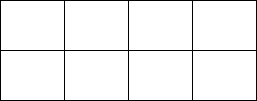
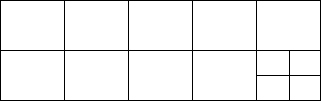
Create Multiview— toggles the multiviewer on the chosen Switcher input.Multiview Layout— choose 4 inputs (1×4), 8 inputs (2×4), or 13 inputs (5+4+1×4). All layouts show the large Program / Preview pair at the top; the 4-input layout adds a single row of 4 monitors, the 8-input layout a 2×4 block of 8, and the 13-input layout adds a third row for 13.Activate tally— colours each tile red for Program and green for Preview. A tile also goes red while an overlay using that same source is on air — from the moment it starts fading in until it has finished fading out — so a graphic that is live is never mistaken for one that is parked. An overlay has no tile of its own, so it only lights a tile that shows the same source.Activate VU-meters— overlays per-tile VU meters. In the 13-input layout only cells 1–9 show meters; cells 10–13 are too small to draw them.PGM Vu-meter source— names which channel feeds the Program VU.Input 1…Input 13— assign sources to tiles. The pipe character|lets you set a display alias separate from the input name (Camera1|CAM 1).
The 8-input layout:
The 13-input layout:
Overlays
Up to four overlays can be configured on each multiviewer with fade transitions of 0–5000 ms. Each overlay exposes three commands:
Fade in/out— toggles the overlay: fades it in if hidden, out if visible, using the configured fade duration.Show— instant on.Hide— instant off.
Important — overlay resolution
Overlays must match the resolution of the Switcher input feeding the multiviewer; mismatched resolutions cause scaling artefacts and visible alignment problems.
Using the Multiviewer
Once configured, the Multiviewer is driven from four places:
- Connectors — the recommended path for external automation, control surfaces, and broadcast-board integration.
- Script Engine — programmatic control inside the project.
- HTTP API — every Multiviewer property is exposed over the generic HTTP API. Read a value with
/api/getproperty, change one with/api/setproperty(e.g.MultiViewLayout,UseTally, or a tile sourceMvInput1…MvInput13), and trigger the overlay commands with/api/invokecommand. Target the Switcher input bytargetnameor its objecttargetGUID. - Manual control — direct UI interaction in Composer Desktop.
To read tally back out — for an external tally light, a control surface, or an operator dashboard — call /api/switcher/tally. It reports each switcher's Program and Preview source, every overlay's state, the tally of each multiviewer tile, and every input's own tally state in one response. A single source can also be read on its own: every input carries a read-only Tally property (None / Preview / Program).
To follow tally rather than poll it, subscribe to the tally event stream (/api/events/subscribe?topics=tally) or the WebSocket Components subscription. Both push an event only when a source actually goes on or off air, so a tally light can sit on the stream indefinitely without traffic while the show is steady. Seed the initial state with one call to the endpoint above, since the stream starts from the moment you connect.
Tip — Stream Deck
The Companion app, paired with a virtual or physical Stream Deck, gives you a hardware-button surface for triggering Multiviewer actions over the API or via Connectors. Useful for live operators driving a show without keyboard / mouse.
Latency note
When a multiviewer source is itself a scene (rather than a raw input), expect a one-frame processing delay through that source. Composer's audio / video sync tools can compensate when this matters for downstream targets.